
Customizing your pitch
After you create a pitch, the editor is where you turn it into a finished deck. You can add and manage slides, edit content, insert visuals and financial data, customize the theme, and organize individual elements.
Most editing tools are available from the toolbar on the right side of the editor. Once your deck is ready, you can present, publish, or download it directly from Upmetrics.
In this article
TIP: Set up your theme before making detailed formatting changes so your fonts, colors, and branding remain consistent throughout the deck.
Managing slides
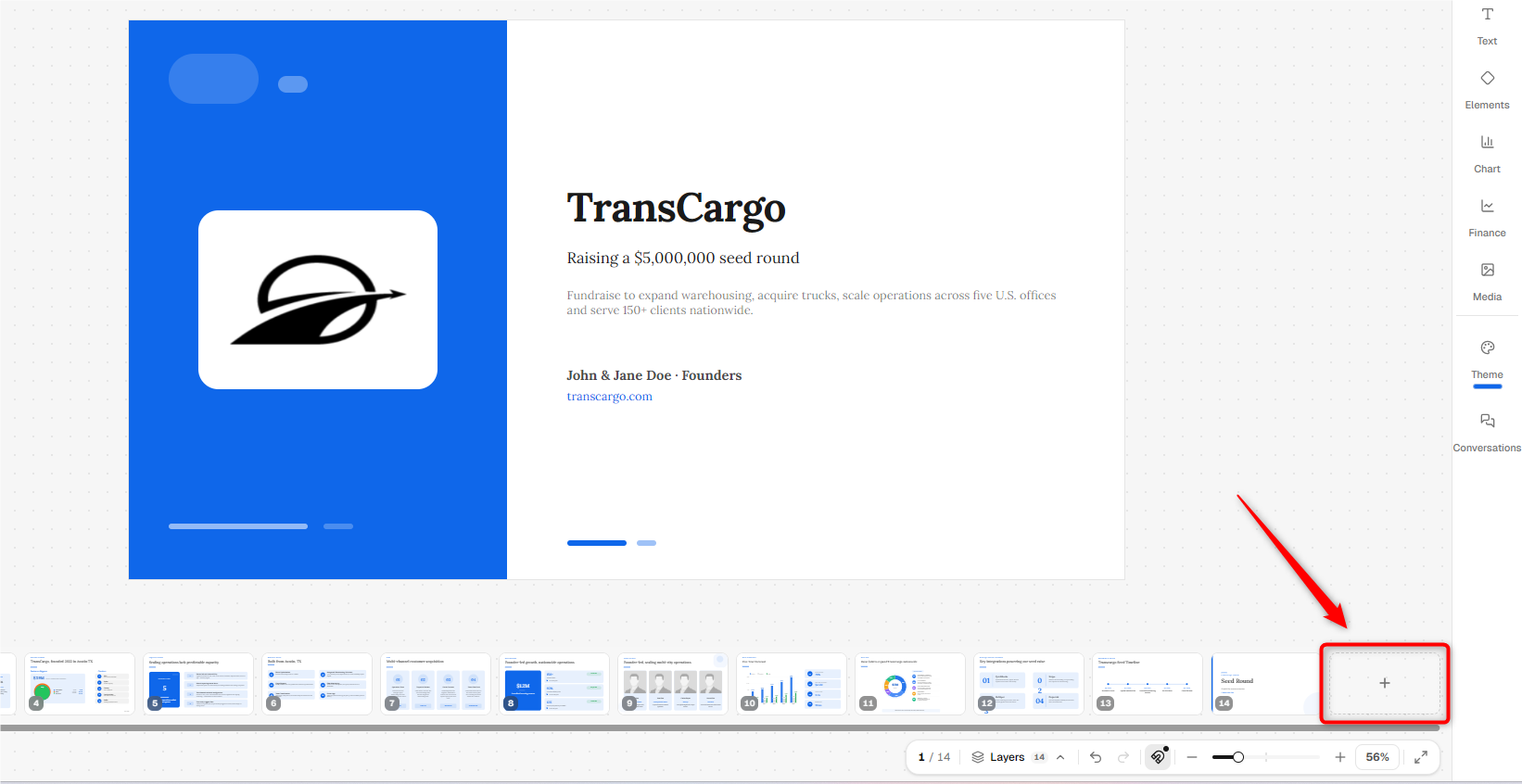
Slides are displayed as thumbnails along the bottom of the editor. From here, you can add new slides and access additional slide management options.
- 1
-
To add a new slide, go to the end of the slide list at the bottom of the editor and click the + tile.
- 2
-
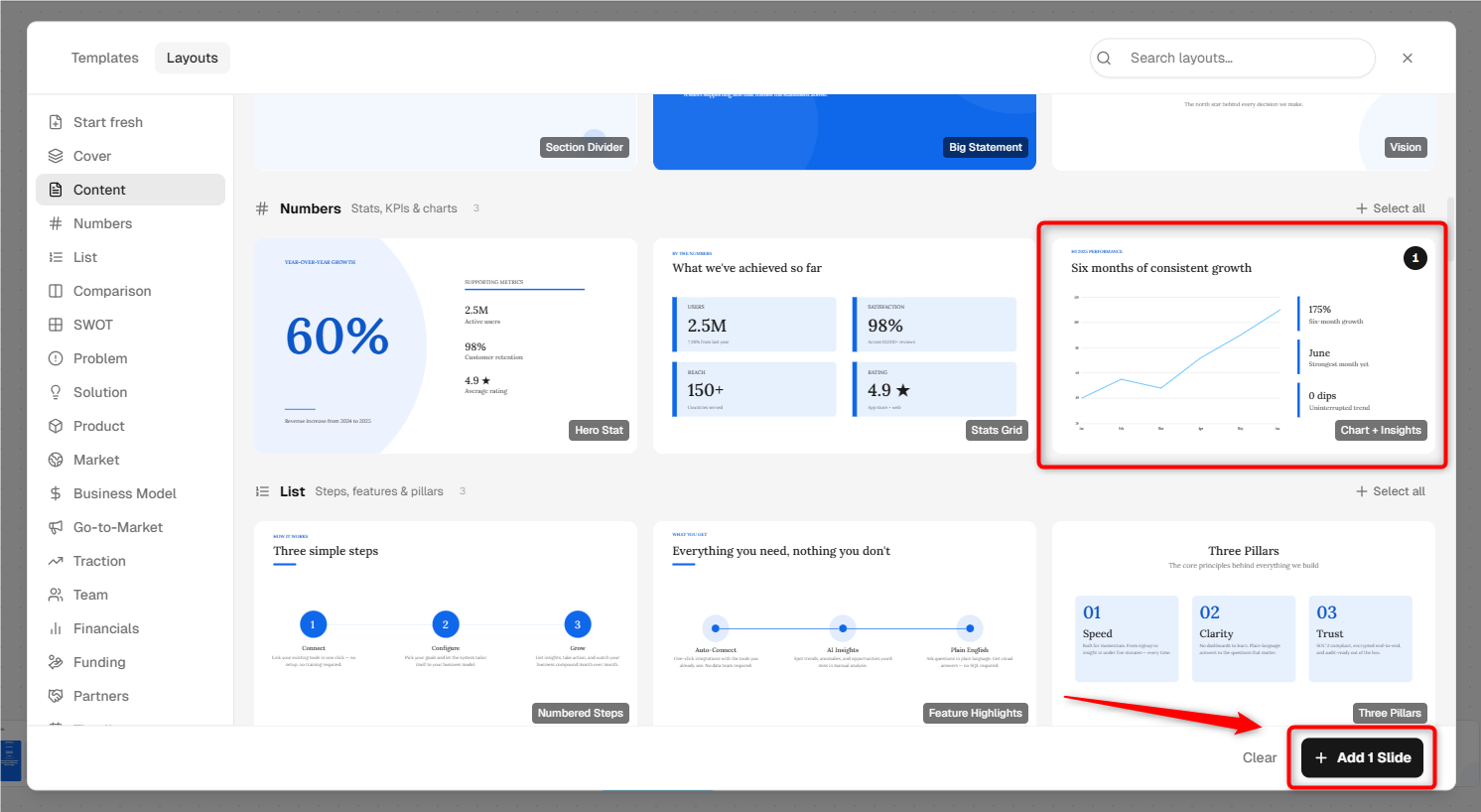
The slide library opens. Select the Layouts tab and browse the available slide layouts.
Layouts are organized into categories such as Cover, Content, Numbers, Problem, Solution, Product, Market, Business Model, Go-to-Market, Traction, Team, Financials, and more.
You can also use Search layouts to quickly find the type of slide you need. Select a layout to add it to your pitch and click on add slide.
- 3
-
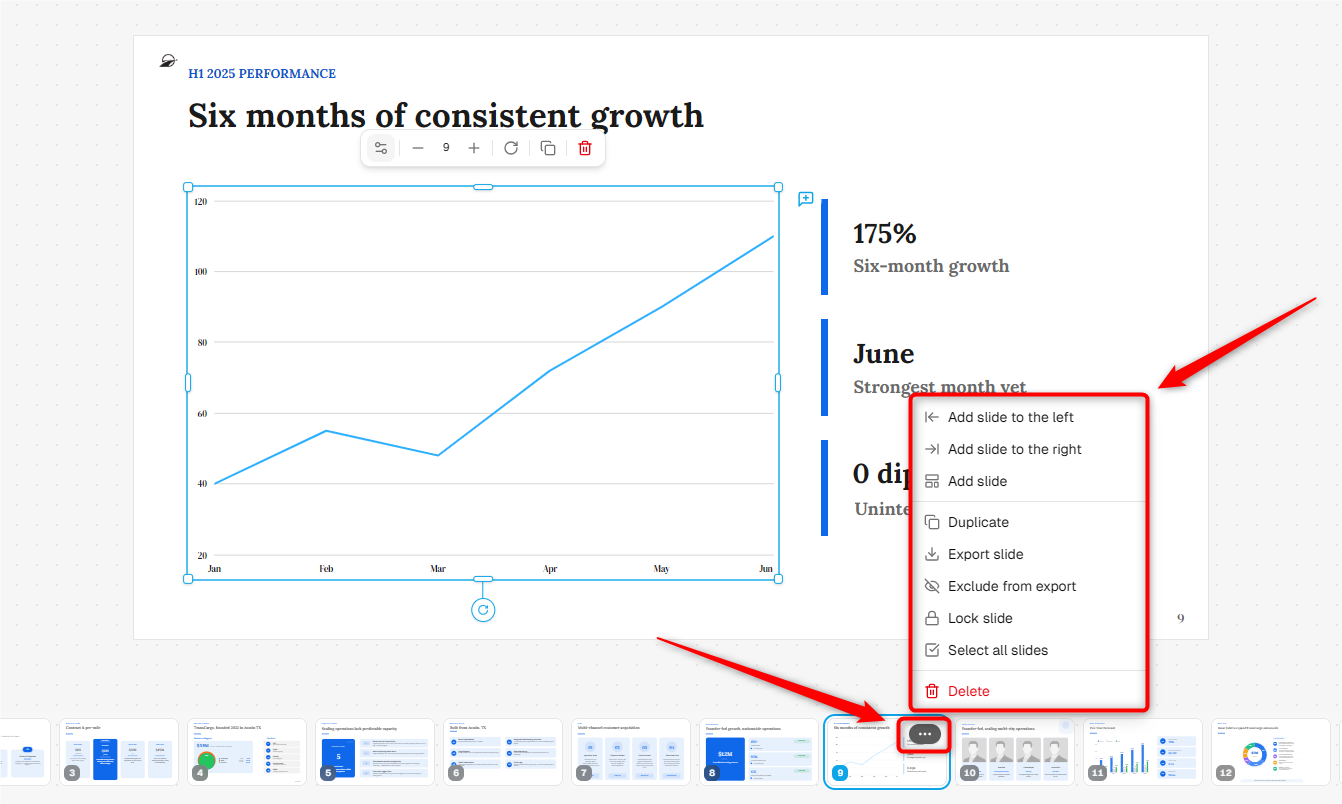
To access additional options for a slide, click the three-dot menu on its thumbnail.
From this menu, you can:
- Add slide to the left or Add slide to the right.
- Add slide.
- Duplicate the selected slide.
- Export slide.
- Exclude from export.
- Lock slide.
- Select all slides.
- Delete the selected slide.
Adding content to a slide
The content tools are located on the right side of the editor. Select a tool to open its panel, then choose the content you want to add to the current slide.
- 1
-
Add text:
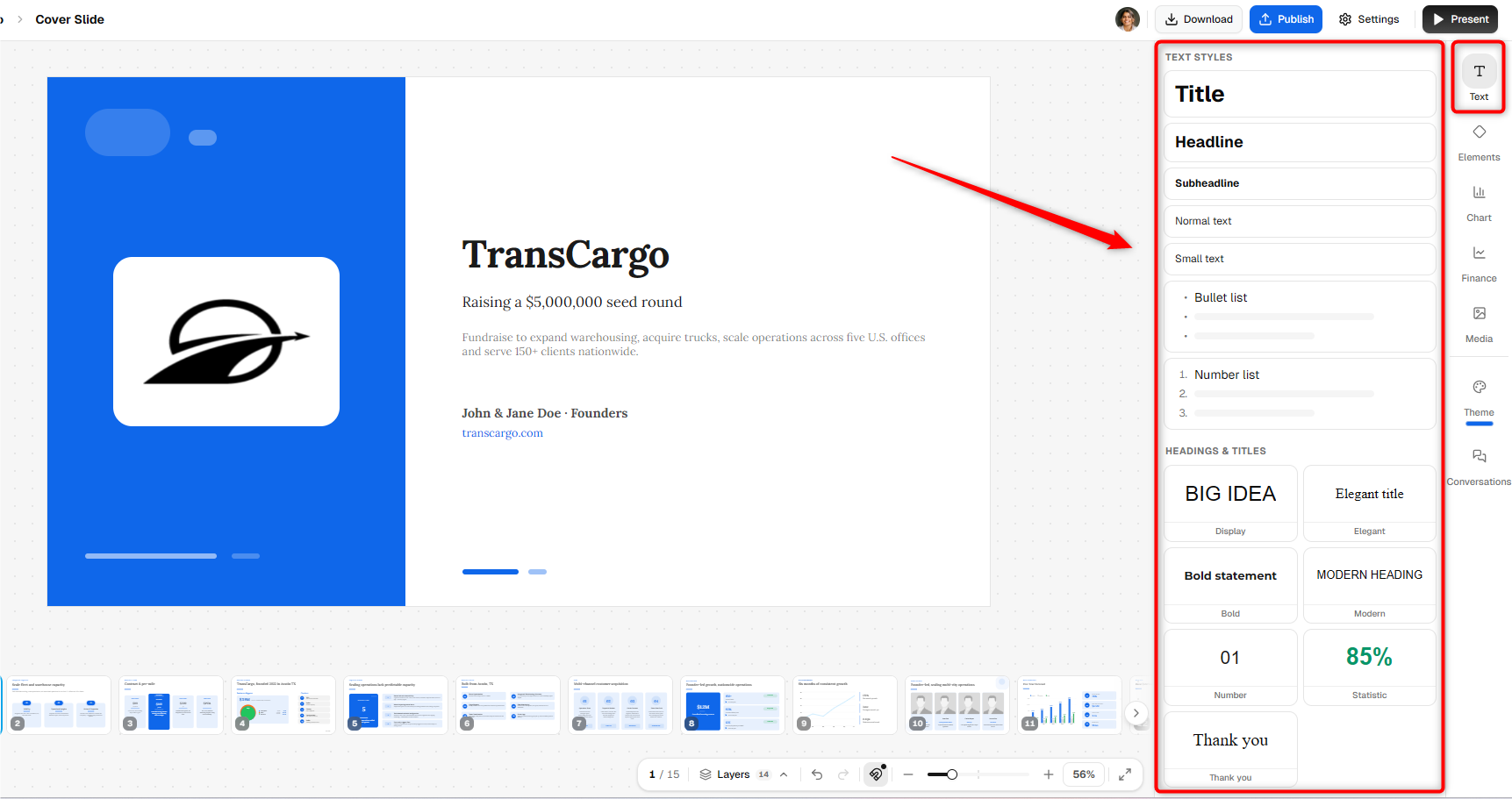
Click Text from the right toolbar. The Text Styles panel opens with options such as Title, Headline, Subheadline, Normal text, Small text, Bullet list, and Number list.
You can also choose from predefined heading and title styles. Select a style to add a text element to the slide, then enter your content.
- 2
-
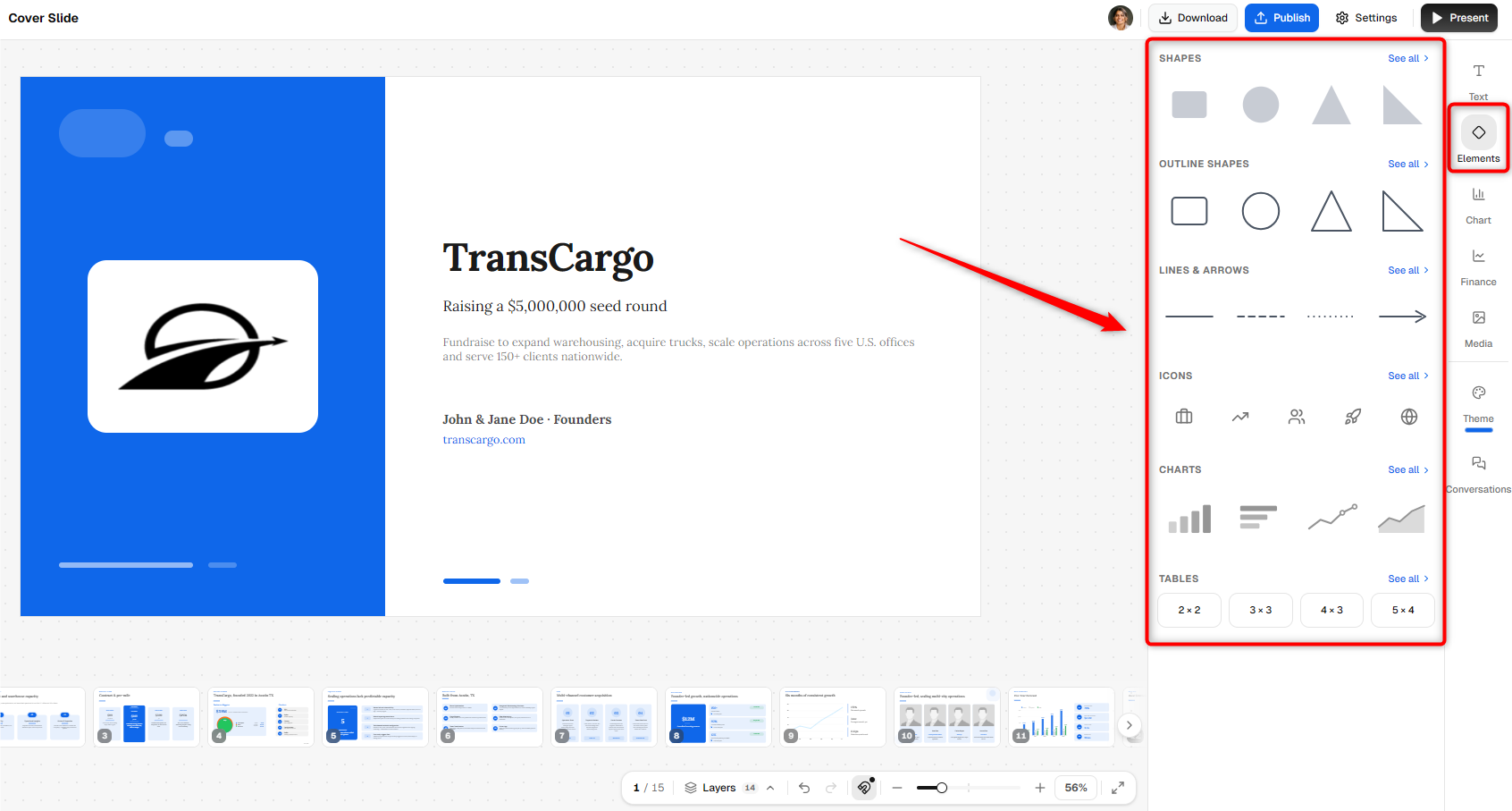
Add elements:
Click Elements to add visual elements to the slide. The panel includes options for Shapes, Outline Shapes, Lines & Arrows, Icons, Charts, and Tables.
Select an element to place it on the slide, then resize or reposition it as needed.
- 3
-
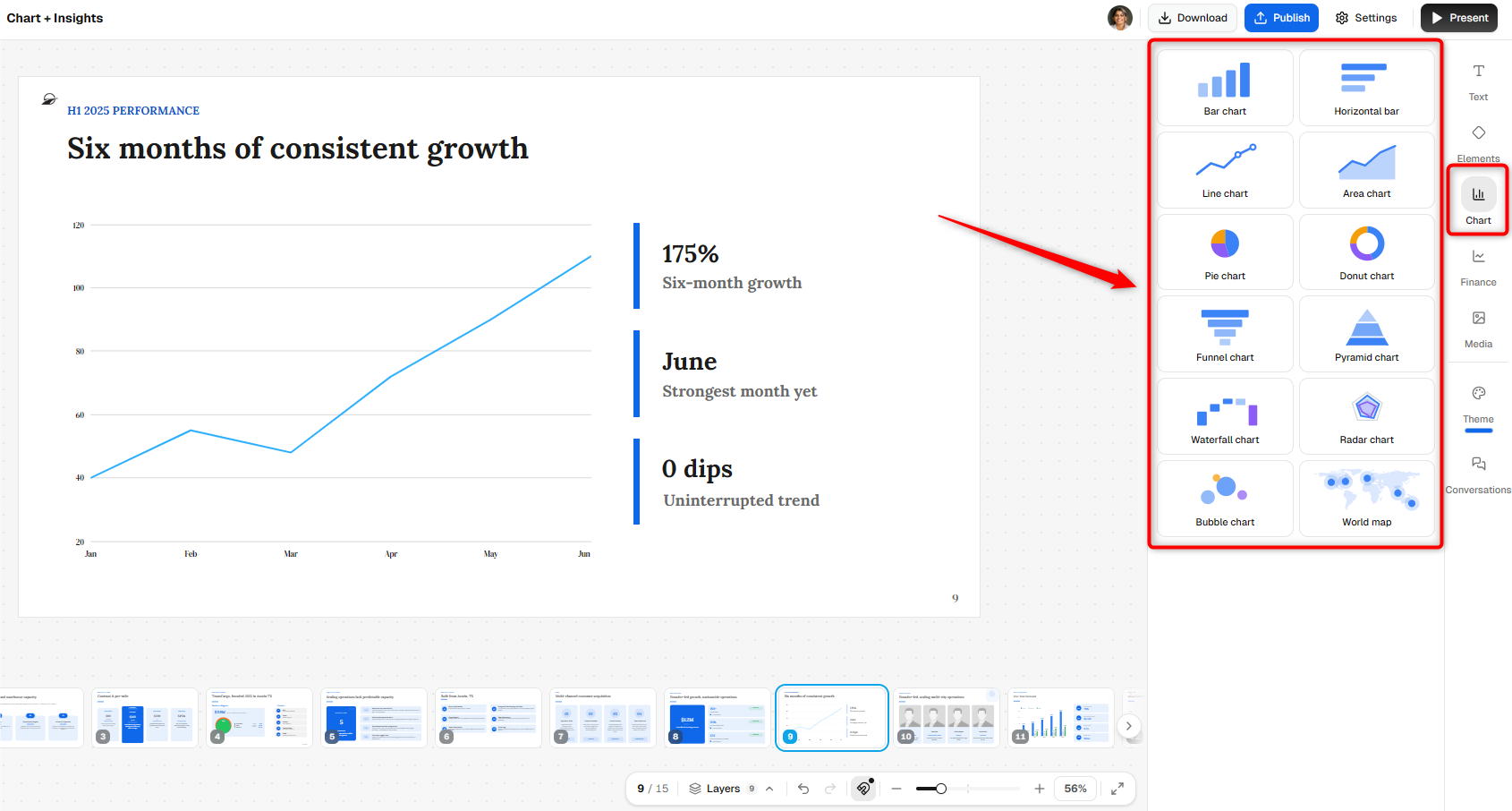
Add charts:
Click Chart from the right toolbar and choose the chart type you want to add.
Available options include Bar chart, Horizontal bar, Line chart, Area chart, Pie chart, Donut chart, Funnel chart, Pyramid chart, Waterfall chart, Radar chart, Bubble chart, and World map.
- 4
-
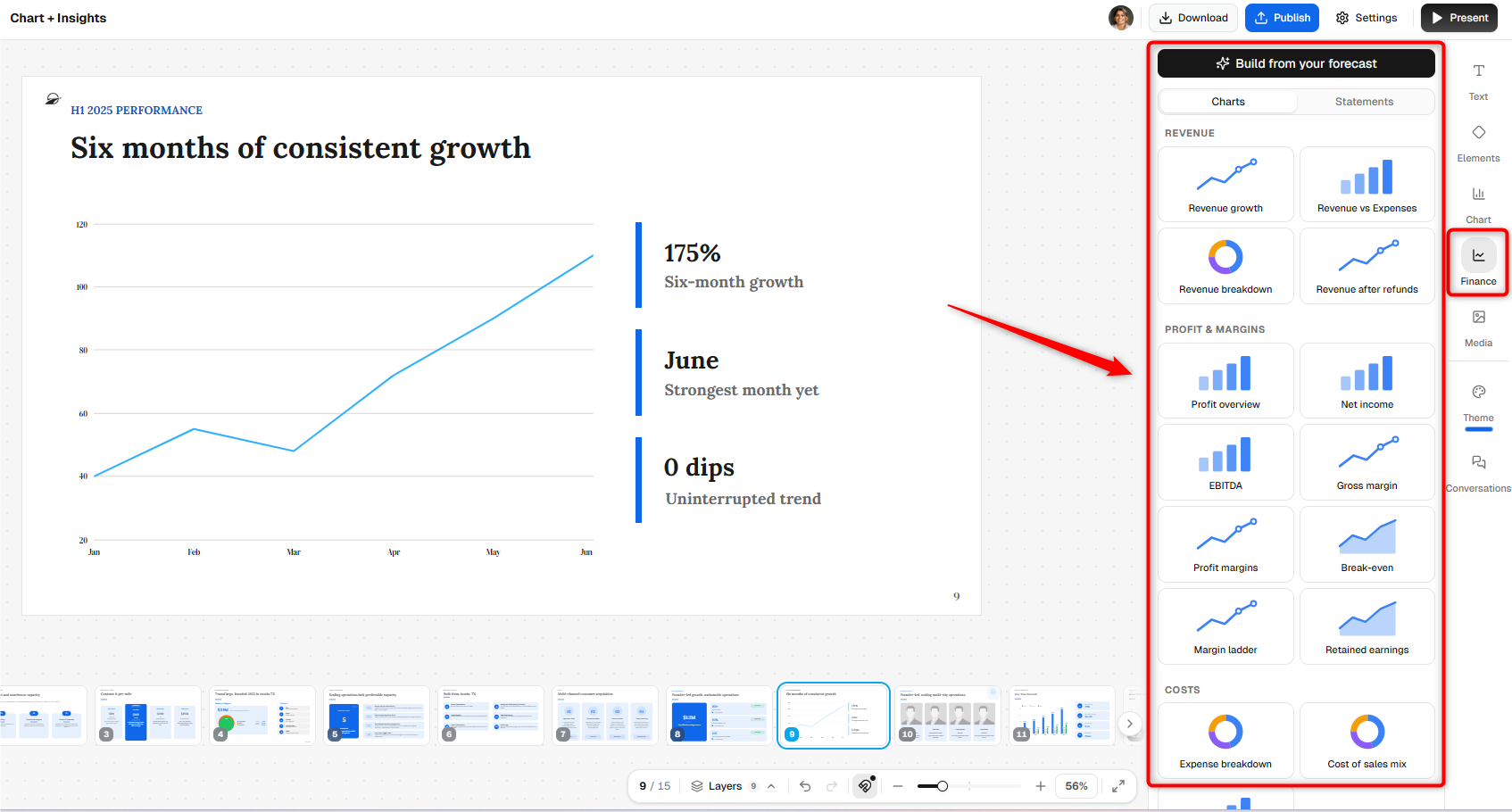
Add financial data:
Click Finance to add charts and statements based on your financial forecast.
You can click Build from your forecast or select from available financial visuals, including revenue growth, revenue breakdown, profit overview, net income, EBITDA, gross margin, break-even, expense breakdown, and other financial metrics.
Use the Charts and Statements tabs to switch between the available financial content.
- 5
-
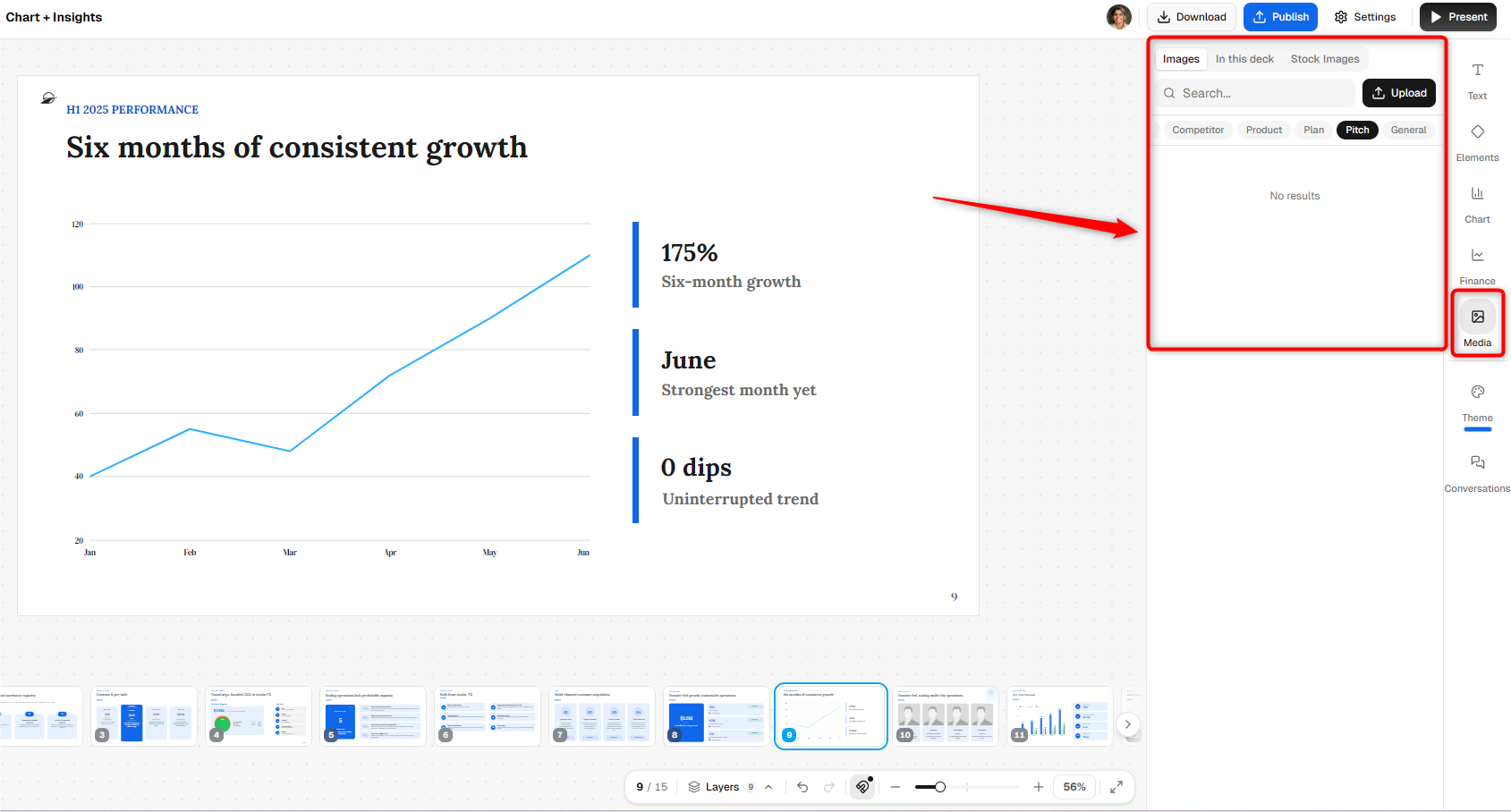
Add images:
Click Media to open the image panel. From here, you can browse images already available in your account or deck, search stock images, or click Upload to add an image from your device.
Select an image to add it to the current slide.
Editing an element
Select any element on the slide to display its quick-edit toolbar. Depending on the type of element, you can change its color or formatting, duplicate it, or delete it.
Drag the element to reposition it on the slide. You can also use the handles around the selected element to resize it.

Customizing the theme
Click Theme from the toolbar on the right side of the editor to change the overall appearance of your pitch deck.
- 1
-
Under Presets, choose a ready-made theme such as Professional, Minimal Gray, Warm Amber, or Fresh Emerald.
- 2
-
Under Colors, customize the deck's Background, Brand, and Accent colors.
- 3
-
Under Background Image, click Choose image if you want to use an image behind your slides.
- 4
-
Under Typography, choose a font pair for the deck. Available styles include options such as Impact, Modern, Editorial, Display, Slab, Friendly, Classic, Handwritten, Geometric, and Rounded.

NOTE: Theme changes can affect the overall appearance of your deck. Review your slides after changing colors or typography to make sure everything still looks as intended.
Managing layers
The Layers option is available in the formatting bar at the bottom of the editor. The number beside Layers shows how many elements are present on the current slide.
Click Layers to view and manage the elements on the slide. This is especially useful when multiple elements overlap and you need to select or change the stacking order of a specific item.

With these editing tools, you can continue refining your slides, adding content, and adjusting the design until your pitch is ready to present, publish, or download.