Writing a Business Pitch
A business pitch is a brief and compelling presentation of your business idea, designed to capture the interest of potential investors, partners, or stakeholders.
The goal of a pitch is to engage the audience, spark interest in your business idea, and persuade them to take a desired action, such as investing in your company or purchasing your product or service.
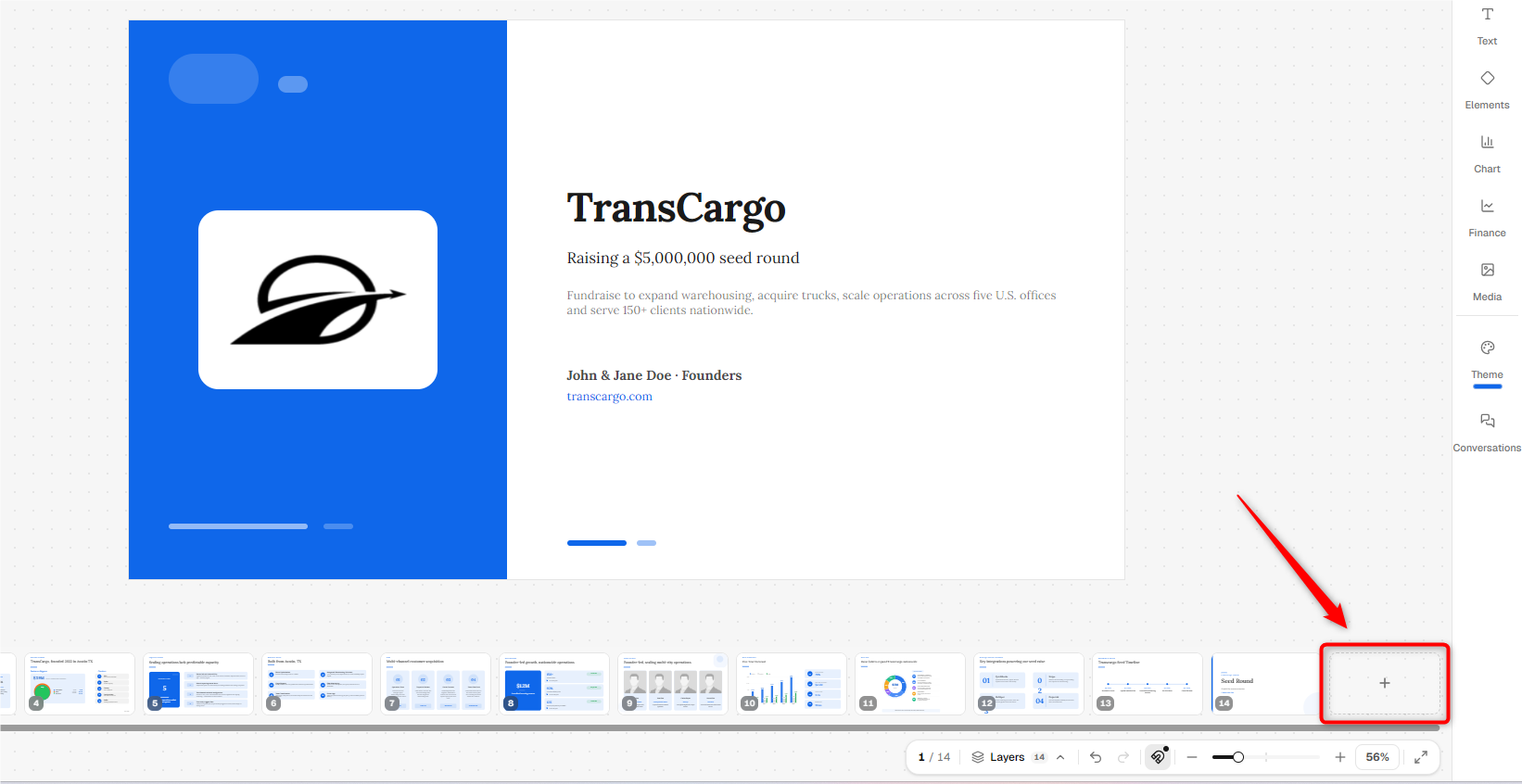
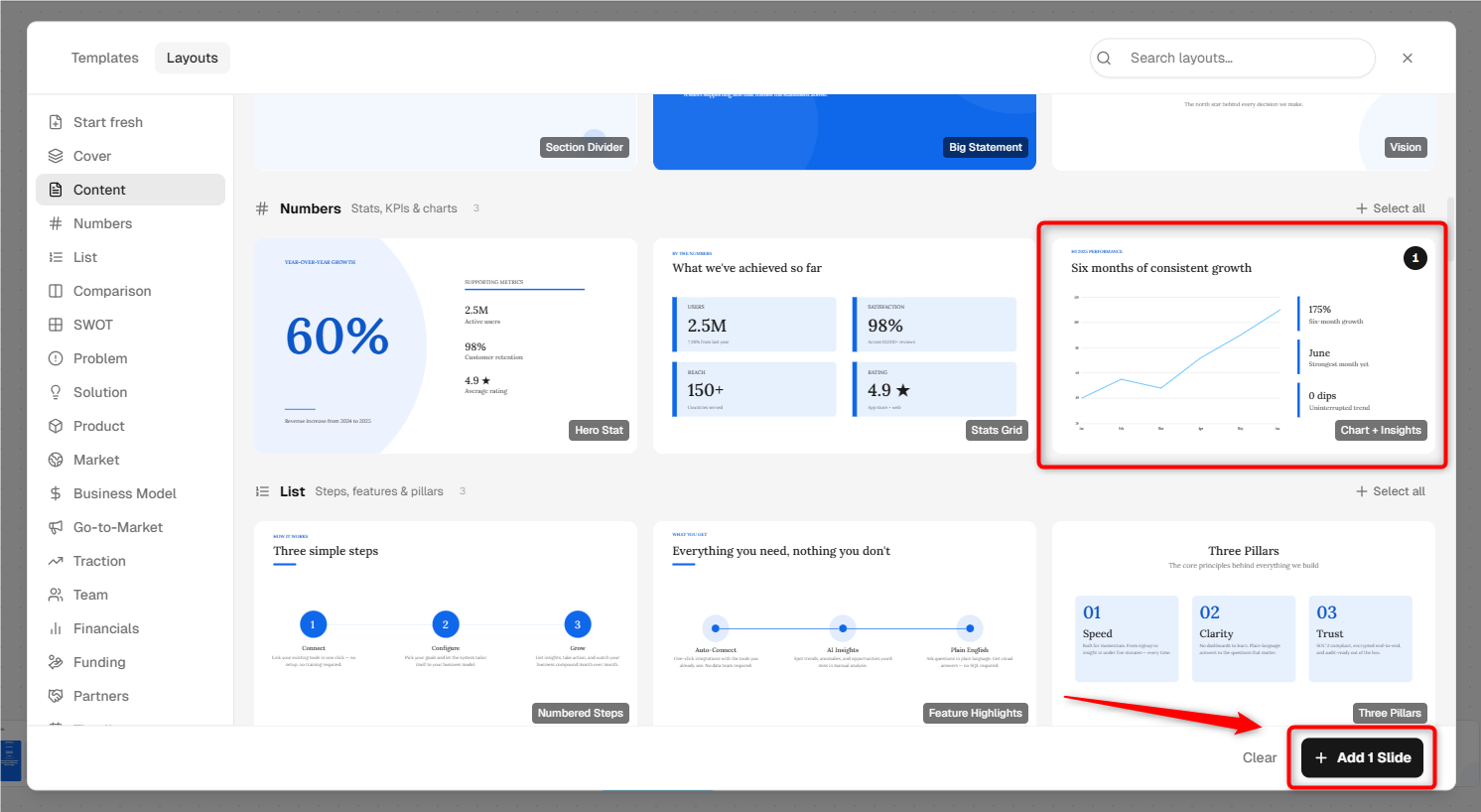
NOTE: The Pitch Deck module is currently designed with a fixed layout. While you can modify the content on existing slides, there’s no option to add new slides or sections. You’ll need to work within the current structure until further enhancements are introduced.
Opening Pitch Deck Module
- 1
-
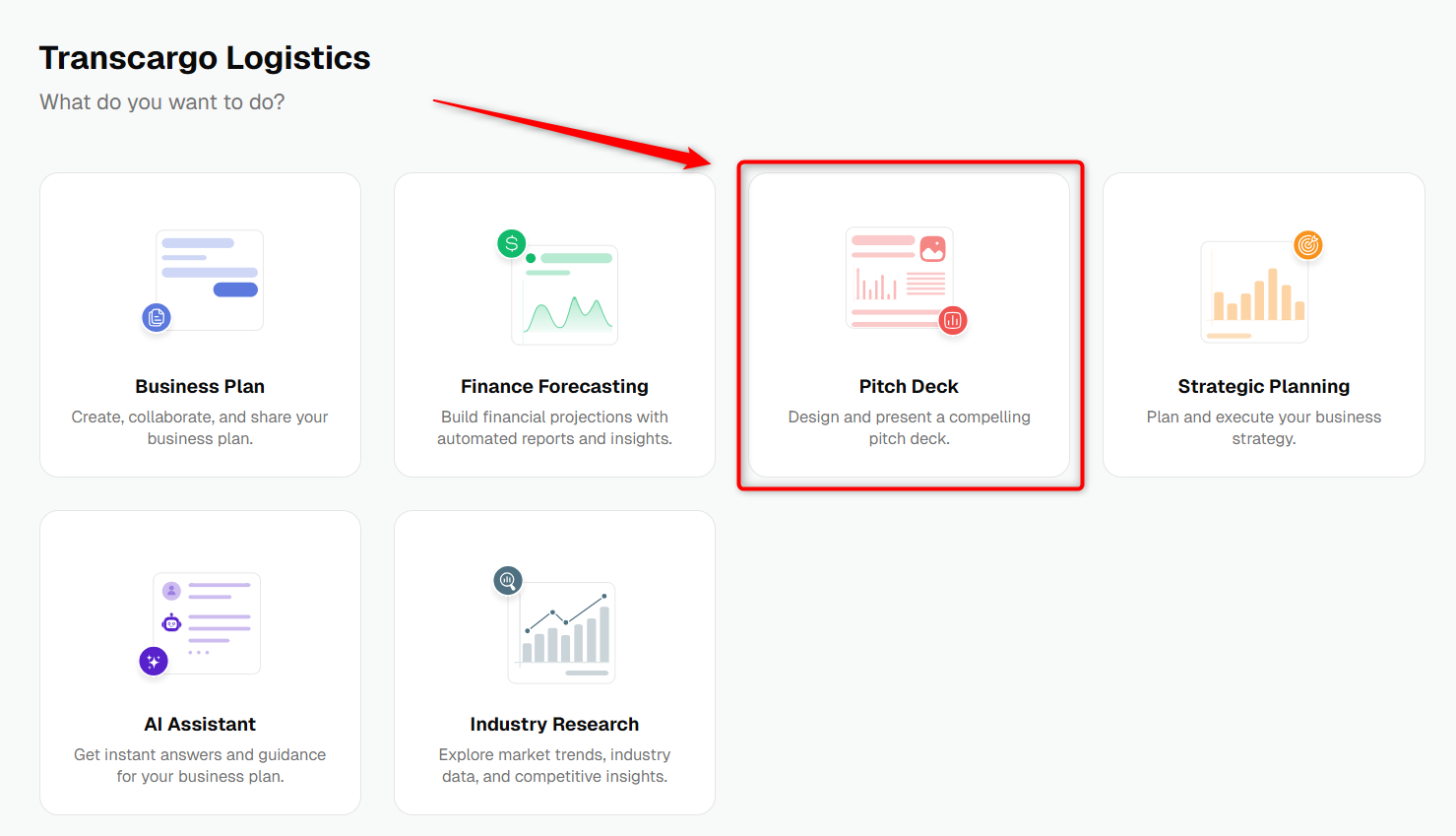
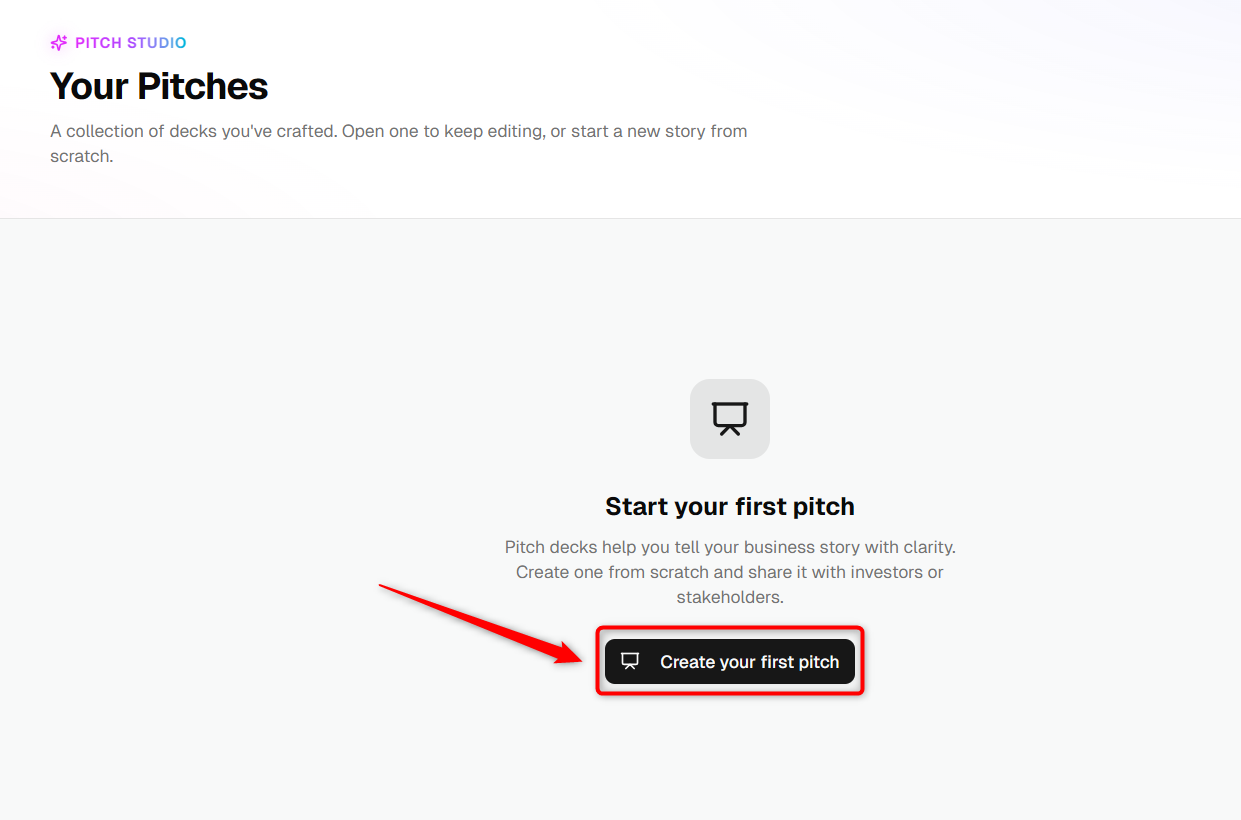
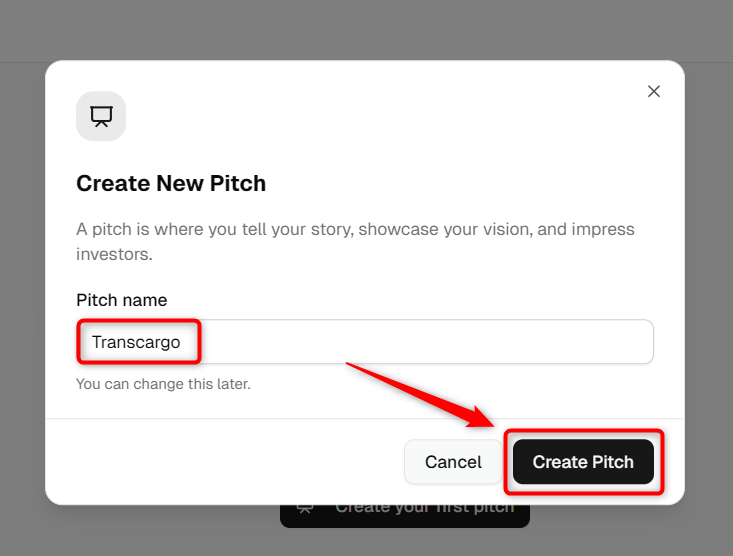
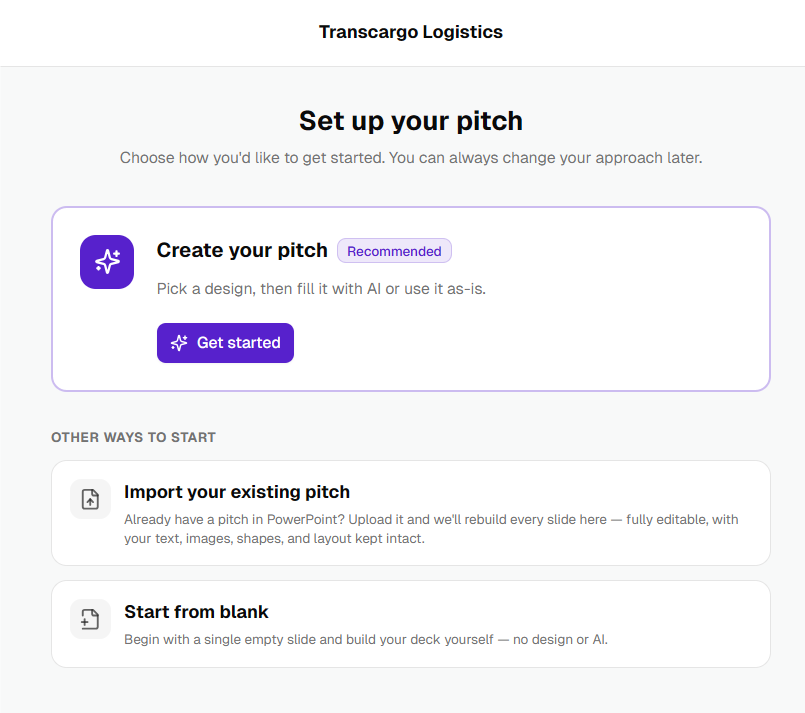
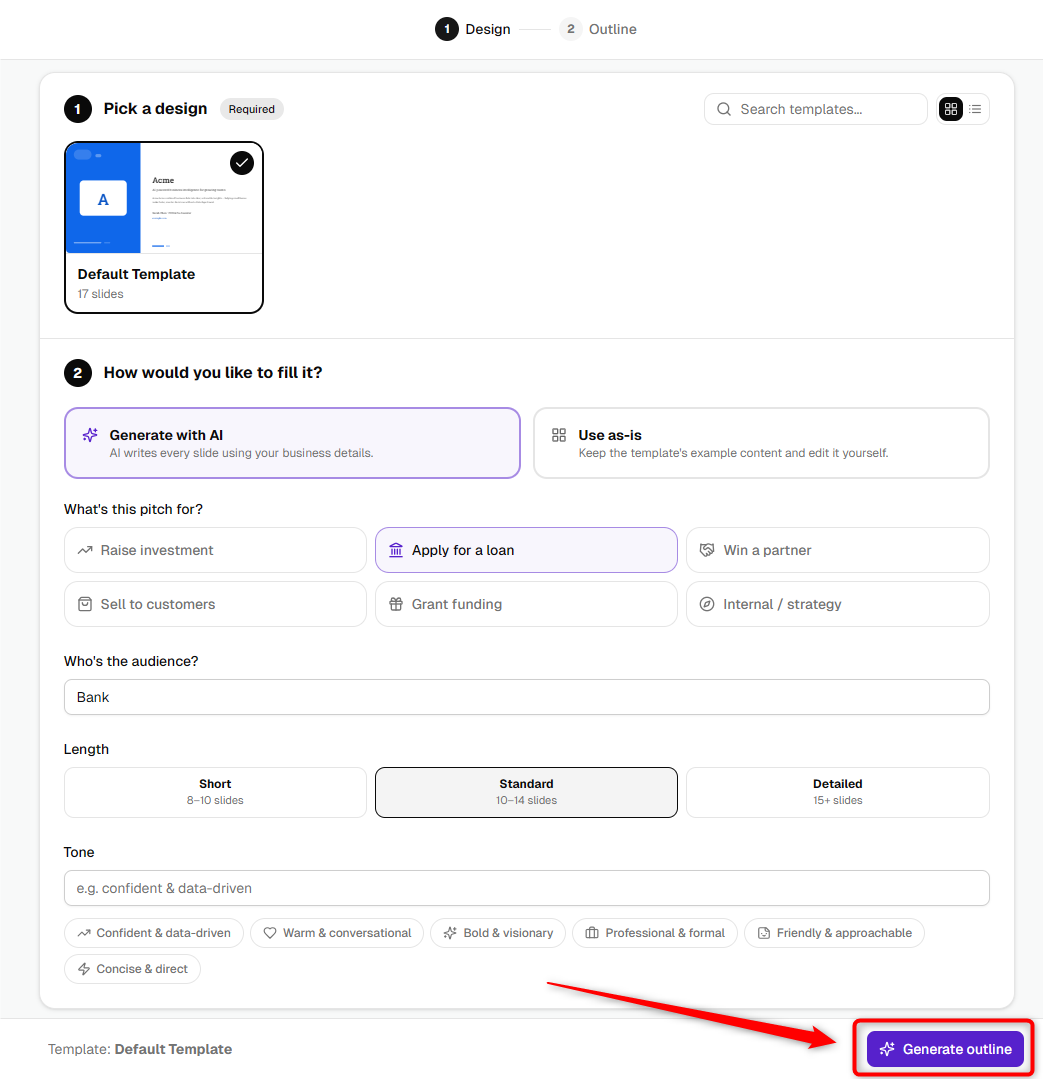
From your Workspace Dashboard, click on the Pitch Deck option. This will open the Pitch Deck builder, where you can begin creating your presentation.

- 2
-
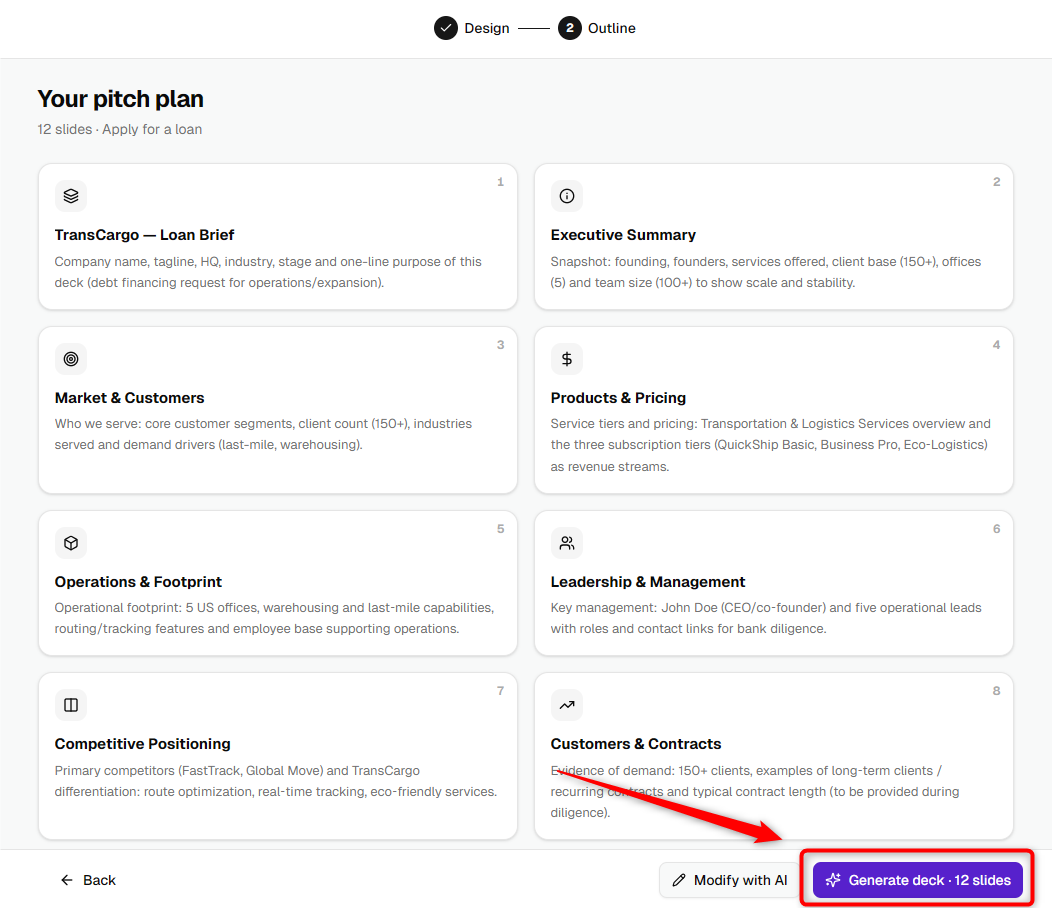
You’ll see the list of all available slides, such as Introduction, Opportunity, Sales & Marketing, Funding, Financial Projections, Traction, Timeline / Milestones, Team & Key Members, and Partners & Resources.
Click on any slide title from the left panel to start editing its content.

In this Article:
1. Introduction
The Introduction section of the pitch deck builder is designed to set the stage for your business presentation. It provides a concise overview of your business, capturing the attention of potential investors or stakeholders from the outset. The Business Name & Logo visually represent your brand and are often the first thing that viewers will notice. The About Business segment provides a brief overview of your business, including its mission, vision, and core values, setting the stage for a deeper dive into your business model and proposition
Components on the Introduction slide
- 1
-
Business Name — Enter your company name in the text field. Keep it concise and brand-accurate.
- 2
-
Business Logo — Upload your logo to visually represent your brand on the slide.
- 3
-
About Business — Write a short overview describing what your company does, where you operate, and what makes you different. Aim for a clear, engaging summary.

NOTE: The character limit for the Business Name is 72.
2. Opportunity
The "Opportunity" offers a comprehensive way to present the potential your business has to prospective investors or stakeholders. This section is designed to showcase the promising aspects of your venture, underlining the gap in the market that your business intends to fill.
Complete the Opportunity slide
- 1
-
Problem Worth Solving — This section focuses on identifying and articulating the specific problem or need in the market that your business aims to address. You can write this as a short paragraph or switch to bullets for clarity.
- 2
-
Our Solution — Following the problem identification, this part delves into your proposed solution. It describes how your product or service effectively solves the identified problem, outlining the unique benefits and features that set your solution apart from existing alternatives. This block also supports either a paragraph or a bulleted list.
- 3
-
Target Market — This section is dedicated to identifying and analyzing the specific group of consumers or businesses that your product or service is designed to serve. It involves segmenting the market based on various criteria such as demographics, geography, behavior, and needs. Use Click to add new target segment button to add a new Target Segment.
- 4
-
Competitors — Map the competitive landscape. Click to add competitor to add each competitor and specify How our solution is better (e.g., cost, speed, features, niche). Use this to position your edge clearly.
Edit or remove any entry using the small pencil icon next to a row in Target Market or Competitors.
TIP: Aim for one to three crisp bullets per section. Quantify wherever possible (e.g., “$45k opportunity”, “80,000 customers”).
NOTE: Use the pencil icon to update text inline or delete unwanted rows in Target Market and Competitors.
3. Sales & Marketing
Explain your go-to-market strategy. Highlight sales channels, promotional activities, and customer acquisition tactics that drive growth and visibility.

4. Funding
In this section, specify how much funding you’re seeking, detail how it will be allocated, and emphasize how this capital will drive business growth.


5. Financial Projections
Present your company’s projected financial performance, including revenue, expenses, and profit margins. You can import data directly from your business plan or enter it manually.

6. Traction
The Traction section showcases your progress and achievements — like revenue growth, customer acquisition, or social media reach.
- Import From Business Plan: Fetch existing traction data from your business plan.
- Enter Manually: Input traction details yourself.
When entering manually, you can choose between: “Start with Empty Data” or “Start with Dummy Data.” After making your choice, click Confirm & Start to proceed.


7. Timeline / Milestones
Use this slide to outline your company’s past achievements and upcoming goals — including product launches, customer acquisitions, or revenue milestones.
- Import From Business Plan: Pull milestones directly from your plan.
- Enter Manually: Build your timeline manually using the Empty or Dummy data option.


8. Team & Key Members
Introduce your company’s leadership team and key players. Include their photos, designations, and short descriptions (2–3 lines) of their expertise or experience.

9. Partners & Resources
This includes detailing strategic partnerships, collaborations with other companies or organizations, key suppliers, and any significant resources that contribute to your business's value proposition and operational efficiency.
The aim here is to demonstrate to investors that your company is well-supported by a network of partners and resources, which mitigates risks, amplifies your capabilities, and positions your business for sustained growth and success.
This section reassures investors that your company is resourceful, well-connected, and strategically positioned within your ecosystem.
Steps to add and manage a partner
- 1
-
Click Add New Partner / Resources to create a new partner card.

- 2
-
Upload the partner company logo in the image area to visually identify the partner.
- 3
-
Enter the Partner Name (e.g., “Cargo Logistics”) in the title field.
- 4
-
In the description box, write how they will help the business. Keep it concise (3–4 lines), focusing on the value or service they provide.
- 5
-
To delete an entry, click Remove Partner? at the bottom of the card and confirm.
NOTE: Keep partner descriptions short and specific so the slide remains clean and easy to scan during presentations.
Common features on every slide
Each slide in the Pitch Deck shares a consistent set of controls to help you draft, review, and export your pitch efficiently. Use the guide below to understand what each control does.
- 1
-
Title — Click the slide title to rename it. Use clear, action-oriented titles (e.g., Funding Request, Target Market).
- 2
-
Help tip — Uncheck the Help tip to see guidance on what content to add and examples of good entries.
- 3
-
Preview — Click Preview to see the finished visual representation of the current slide before you export.
-
Exclude from download — Toggle the slide on/off to include or exclude it from the final exported pitch.
-
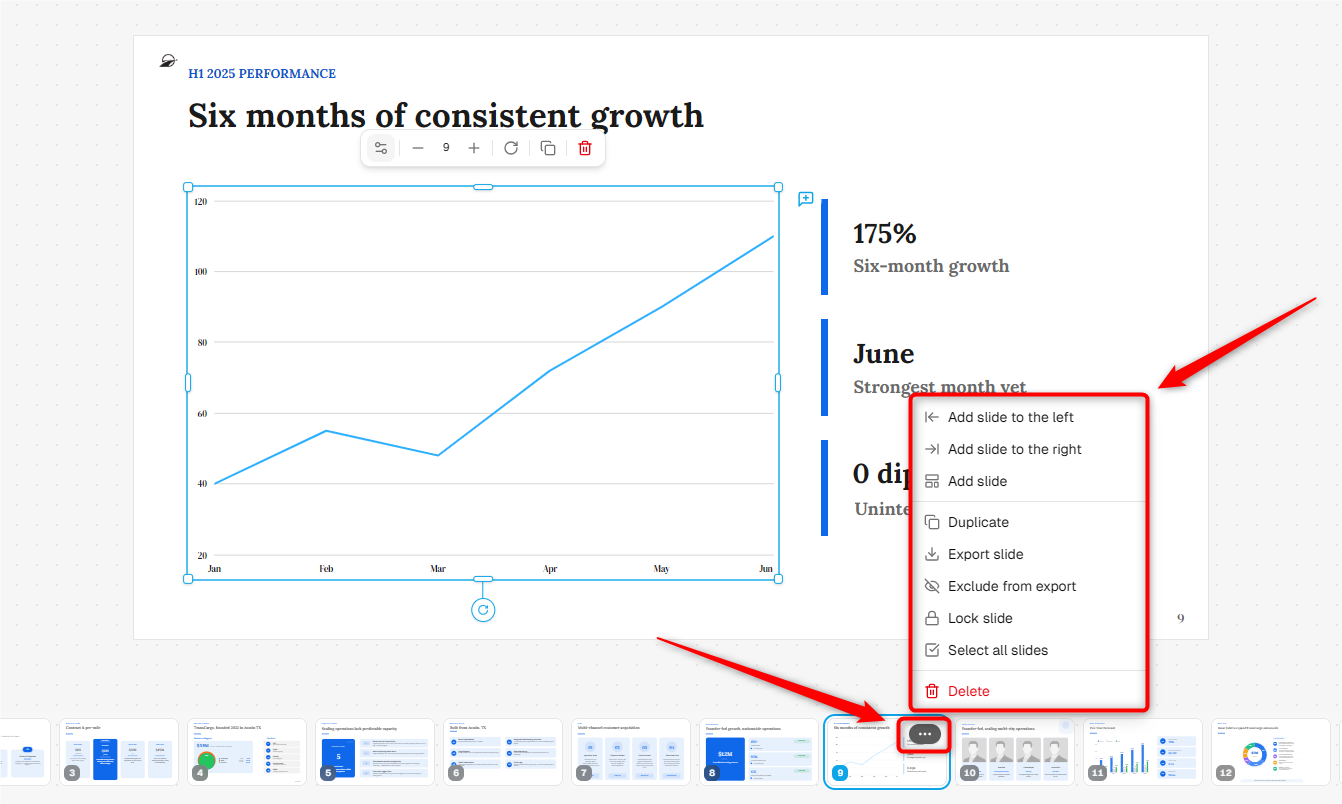
Download slide — Export the current slide as PPT, PDF, DOC, or an Image for sharing or offline editing.
- 4
-
Comments/conversations — Use comments to collaborate with teammates. @mention members, resolve threads, and track feedback.
- 5
-
Write with AI — Open Write with AI to generate or refine content using predefined or custom actions (e.g., Rewrite for simplicity, Expand, Summarize).


TIP: Use Preview after every major edit to ensure spacing and bullet formatting look presentation-ready.
Conclusion
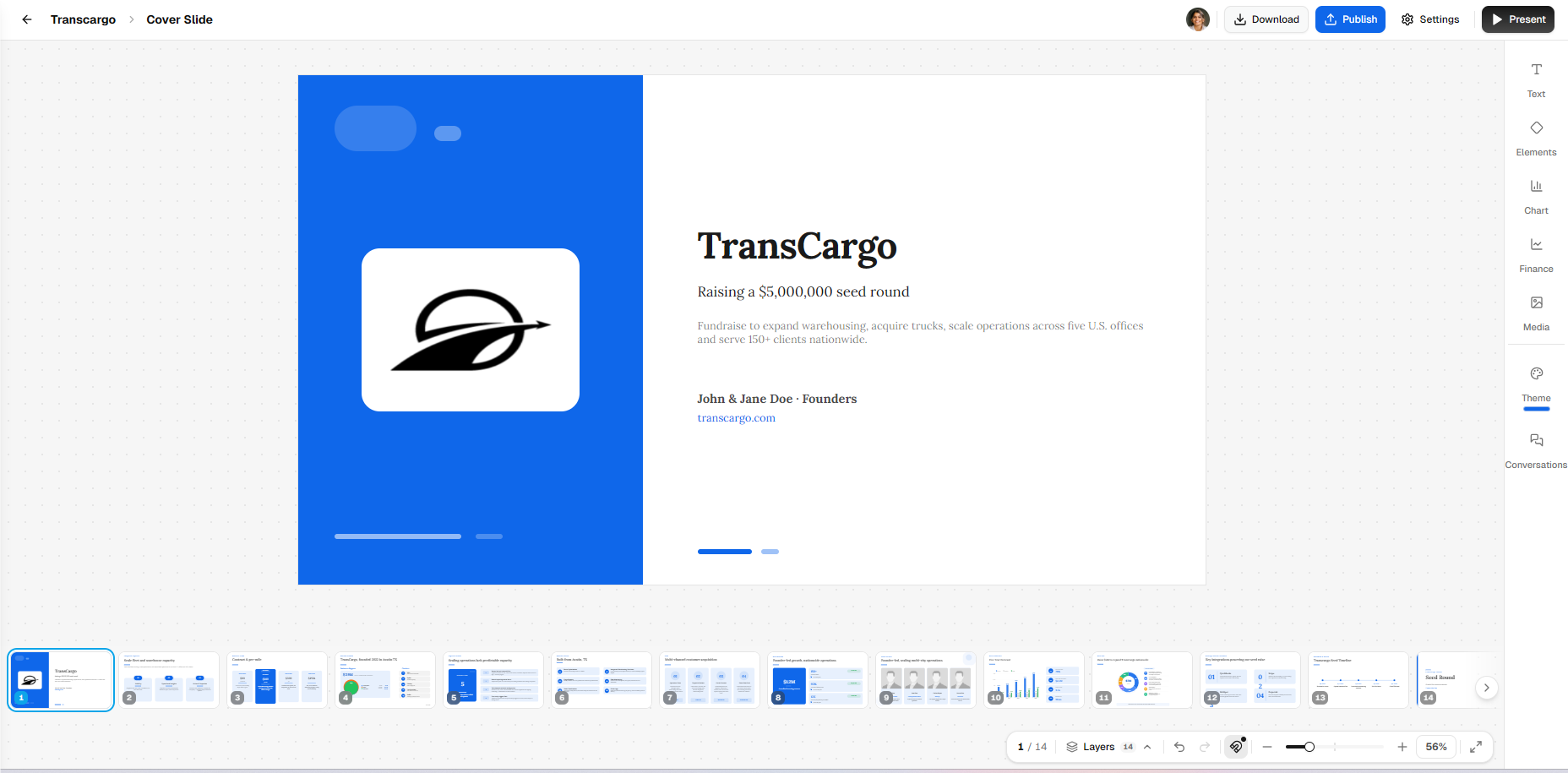
Once completed, your Pitch Deck will be ready to share — summarizing your business’s vision, opportunity, traction, and growth potential in a professional, investor-ready format.