
How to add business logo to your business plan and pitch?
Your business logo represents your brand identity and adds a professional touch to your business plan and pitch. Including a logo ensures that your documents appear polished and visually aligned with your company’s branding.
This guide will walk you through the steps to add a logo to your business plan and pitch.
In this article
Add logo to your business plan:
- 1
-
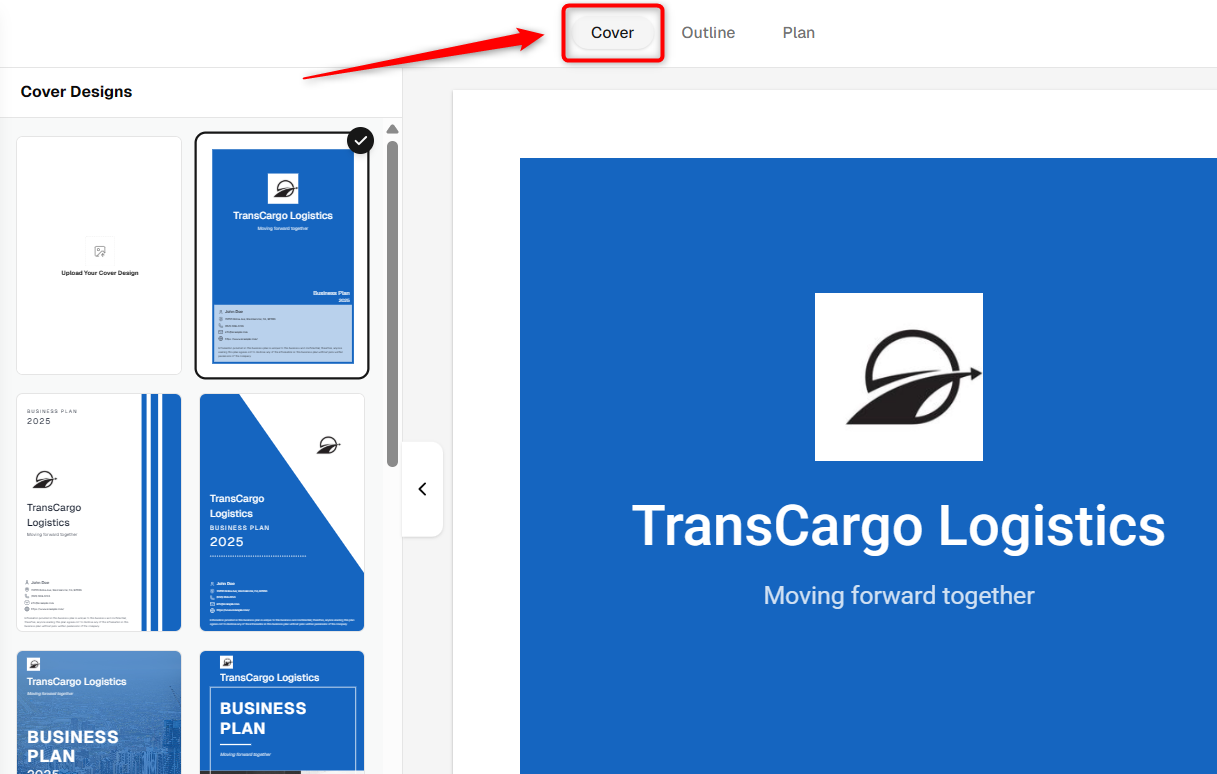
Choose the dedicated company and go to the Business Plan Builder. Navigate to the Cover section.
- 2
-
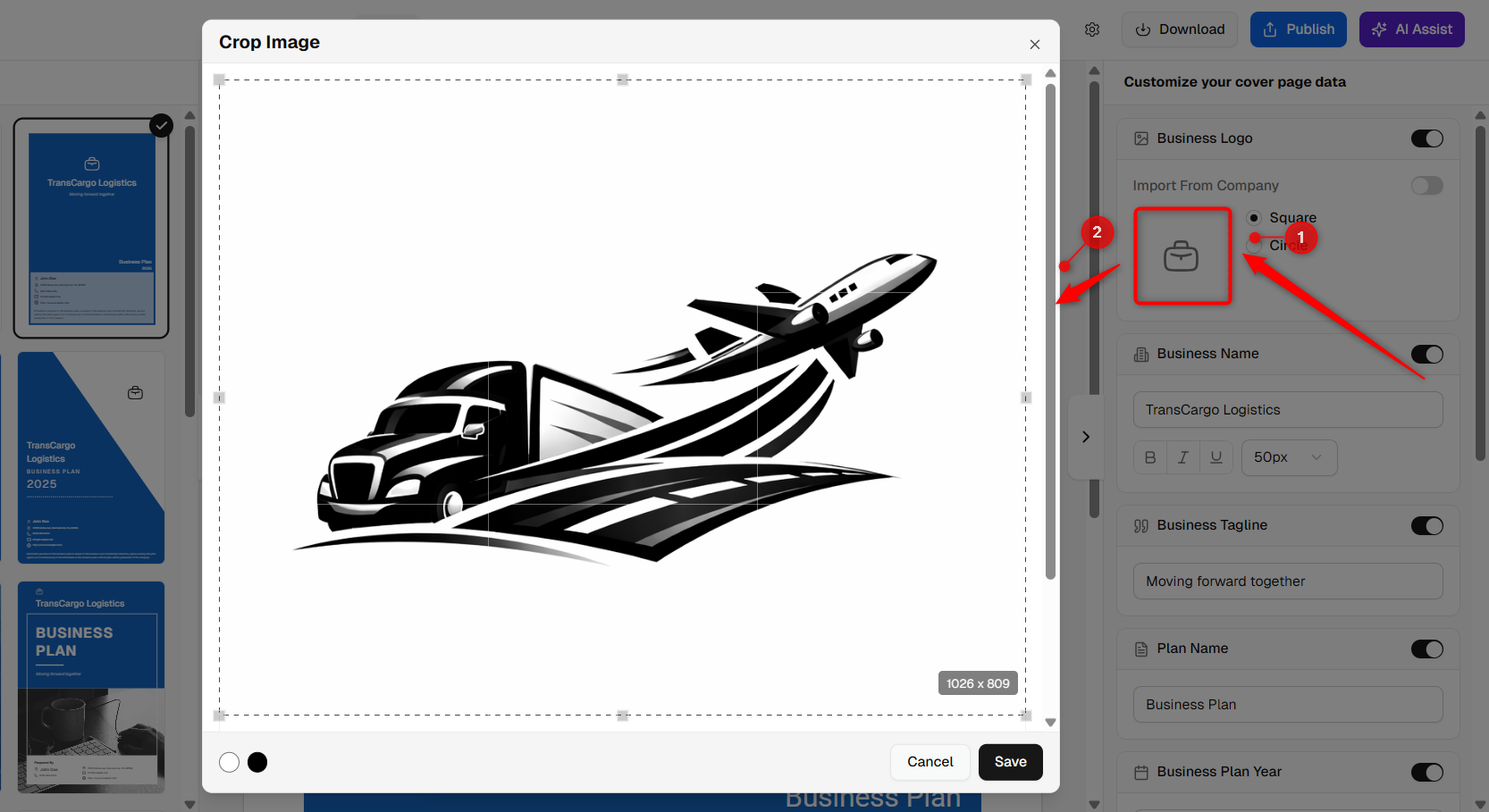
Locate the logo placeholder and click on it. The system will open your device’s file explorer so you can select the desired logo.

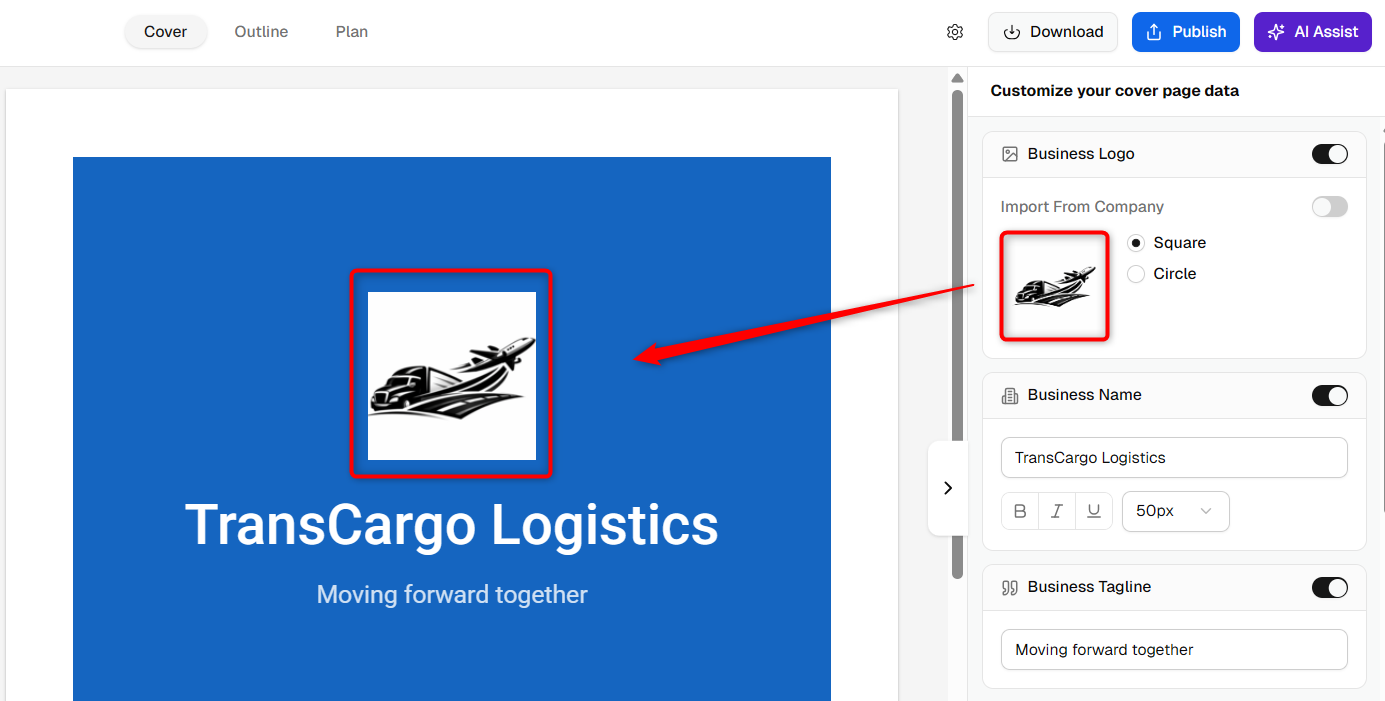
- Import from Company: Automatically fetches the logo from your company details (if uploaded).
- Upload Manually: This allows you to select a logo from your device.

- 3
-
Choose the preferred option and upload your logo.
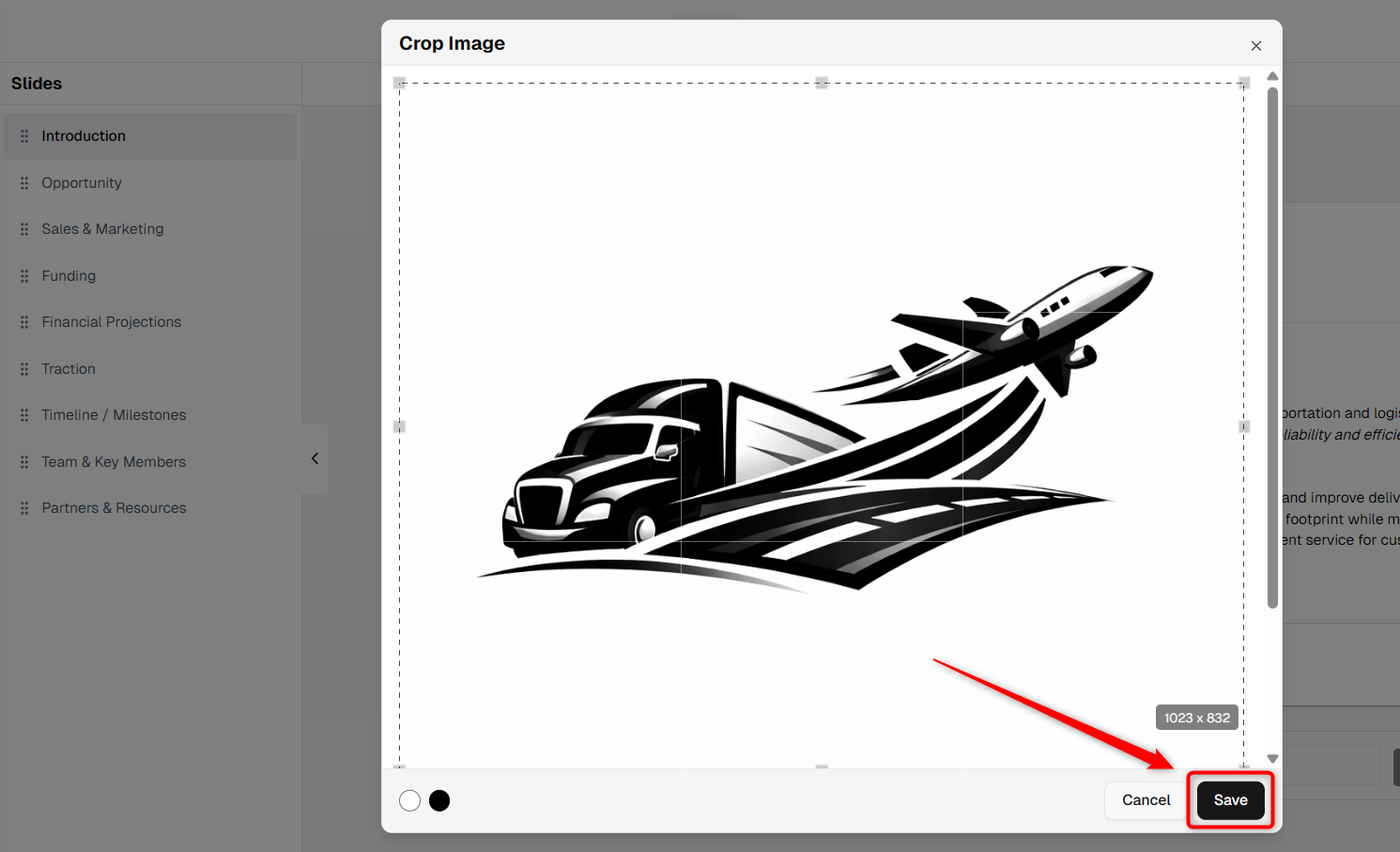
Click on Save if uploading manually; otherwise, the import from the company will be updated automatically.
Add a logo to your pitch:
- 1
-
Access your company and open the Pitch Deck Builder.

- 2
-
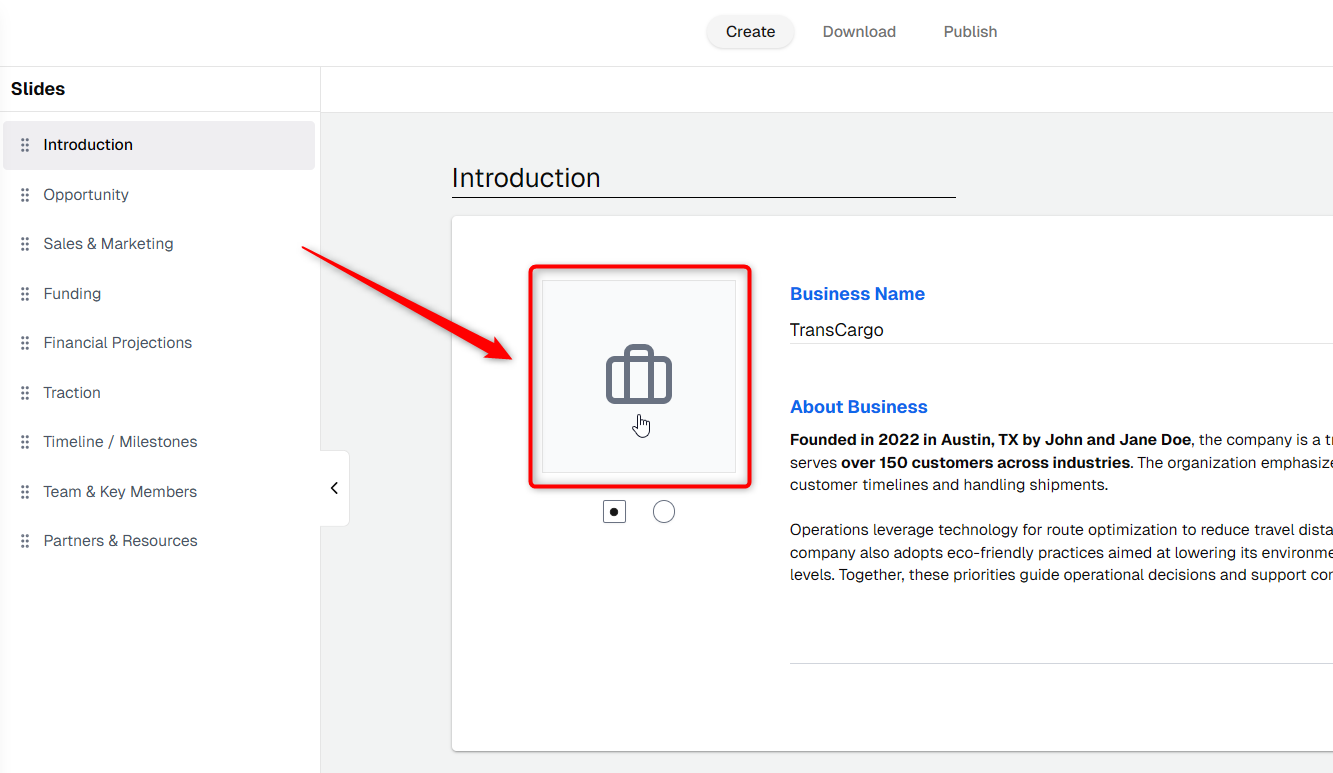
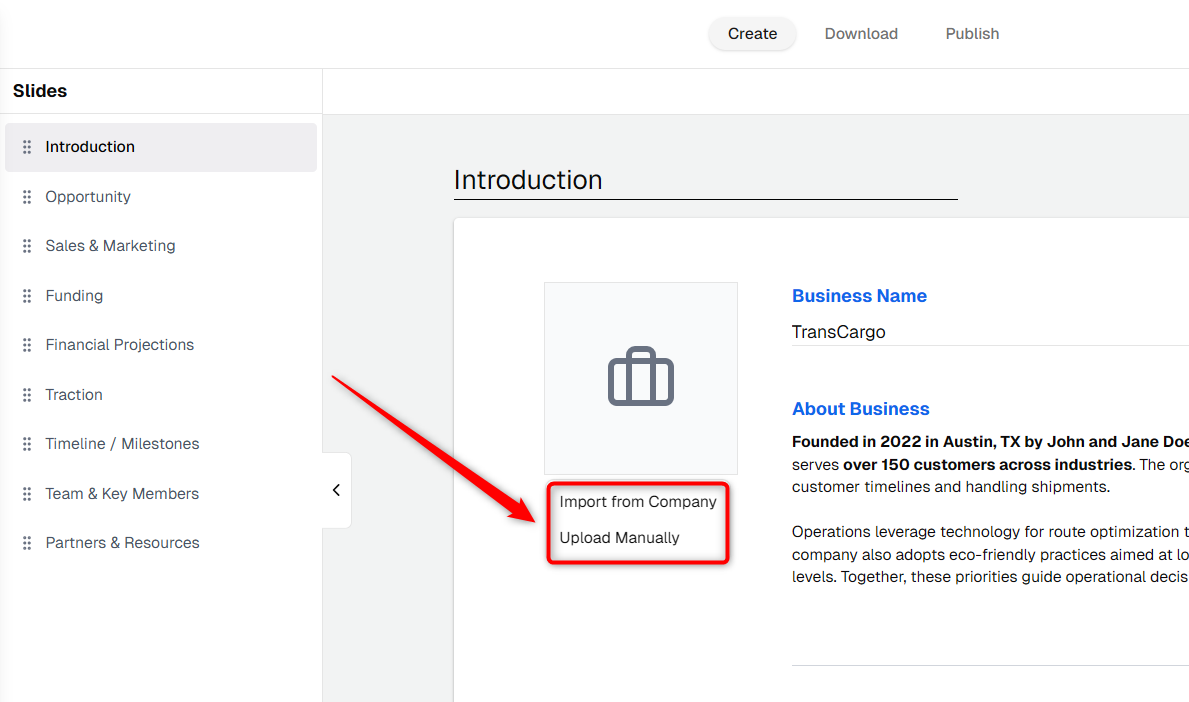
Within the Pitch Deck builder, go to the Introduction slide where the business logo is placed.
- 3
-
Click on the logo placeholder, and you’ll see two options:
- Import from Company: Automatically fetches the logo from your company details (if uploaded).
- Upload Manually: This allows you to select a logo from your device.
- 4
-
Click on Save if uploading manually; otherwise, the Import from company will be updated automatically.
Your business logo helps create a strong brand identity in your business plan and pitch. By following the steps in this guide, you can easily add, update, or replace your logo whenever needed. Whether you upload it manually or import it from your company, your plan will always look professional and visually appealing.