
Entering grant in your forecast
In this article
If you receive a grant that you do not need to repay, it can be recorded as revenue in your financial forecast. Since this type of grant does not create a repayment obligation, adding it as a revenue stream helps ensure the funding is included in your revenue projections.
Upmetrics gives you two ways to add a grant to your forecast. You can describe the grant and let Finance AI draft the revenue stream for you, or you can create the revenue stream manually.
Adding a Grant to Your Financial Forecast
Adding a Grant with AI
- 1
-
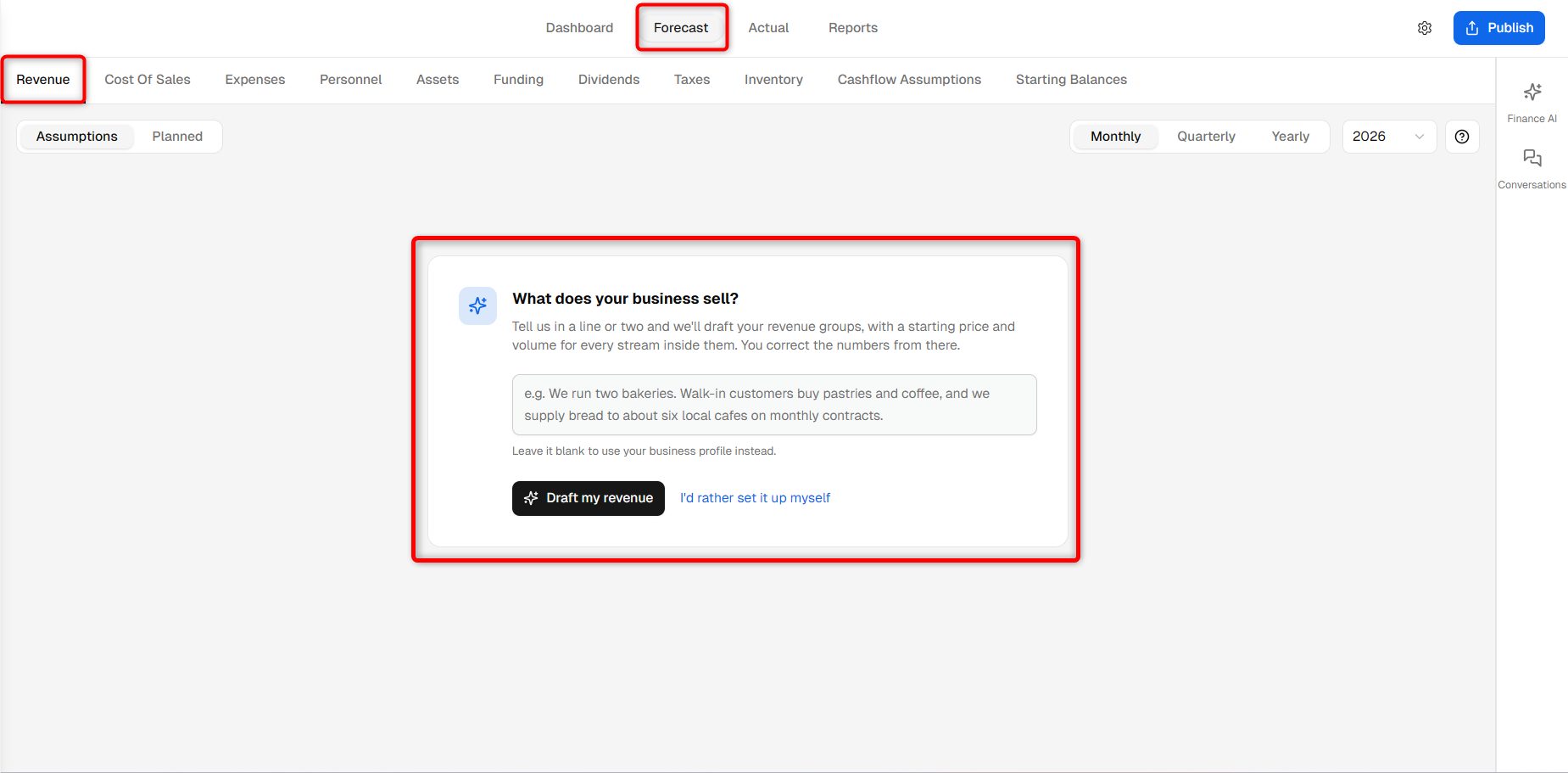
Go to the Finance Forecasting module, select the Forecast tab, and open the Revenue section.
You will see a guided revenue setup asking What does your business sell?
- 2
-
Describe the grant in plain text. Include details such as the grant name, amount you expect to receive, and when you expect to receive it.
Once you have entered the details, click Draft my revenue.
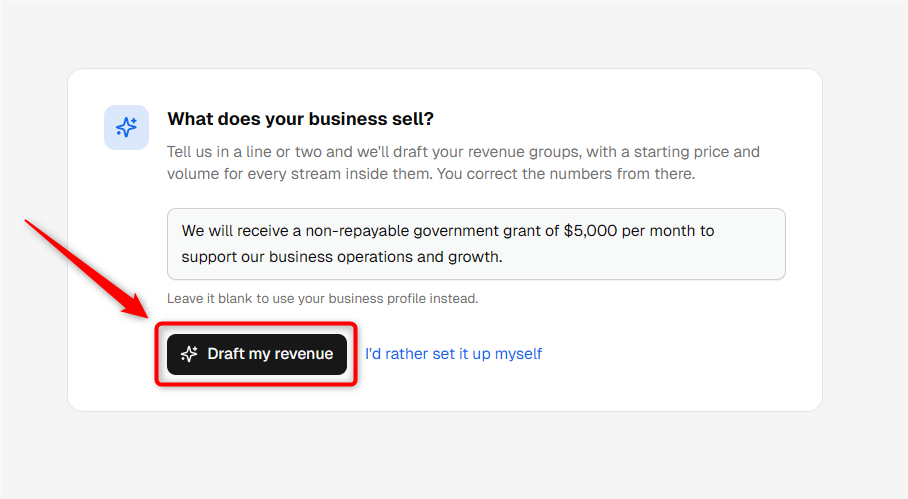
TIP: Mention that the grant is non-repayable and include the expected amount and receiving date. This helps Finance AI create a more relevant starting point.
- 3
-
Finance AI will create a suggested starting point for your revenue forecast.
Review the proposed revenue group, stream name, amount, and other assumptions. If required, click the Edit icon beside the stream to make changes.
For a grant with a predefined amount, review that the revenue stream is set up appropriately as a Fixed Amount.
If the suggestion looks correct, keep the stream selected and click Add these streams.
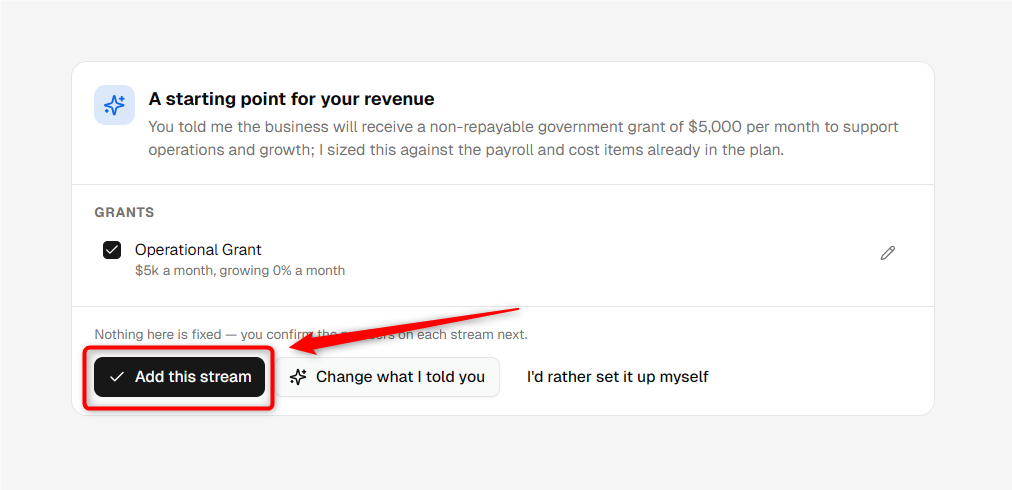
NOTE: The suggested figures are only a starting point. Review the grant amount and timing before adding the revenue stream to your forecast.
- 4
-
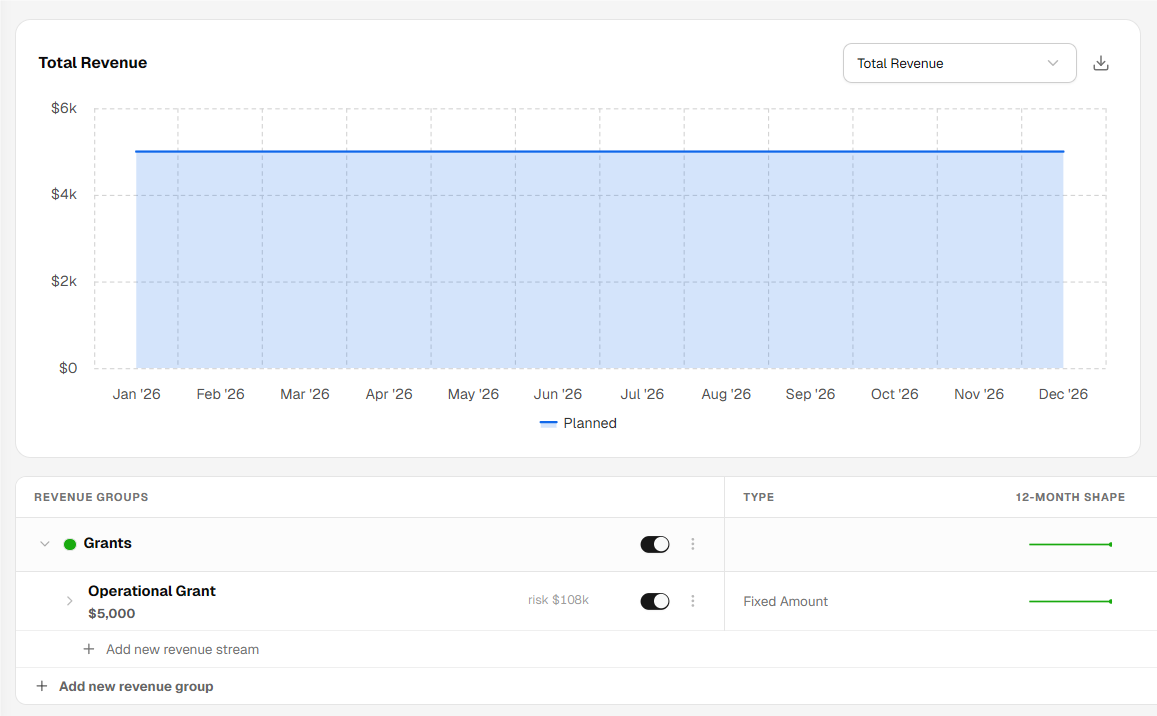
The selected grant revenue stream will be added to your forecast.
From the Revenue section, you can review the stream and update its assumptions whenever required.
Adding a Grant Manually
- 1
-
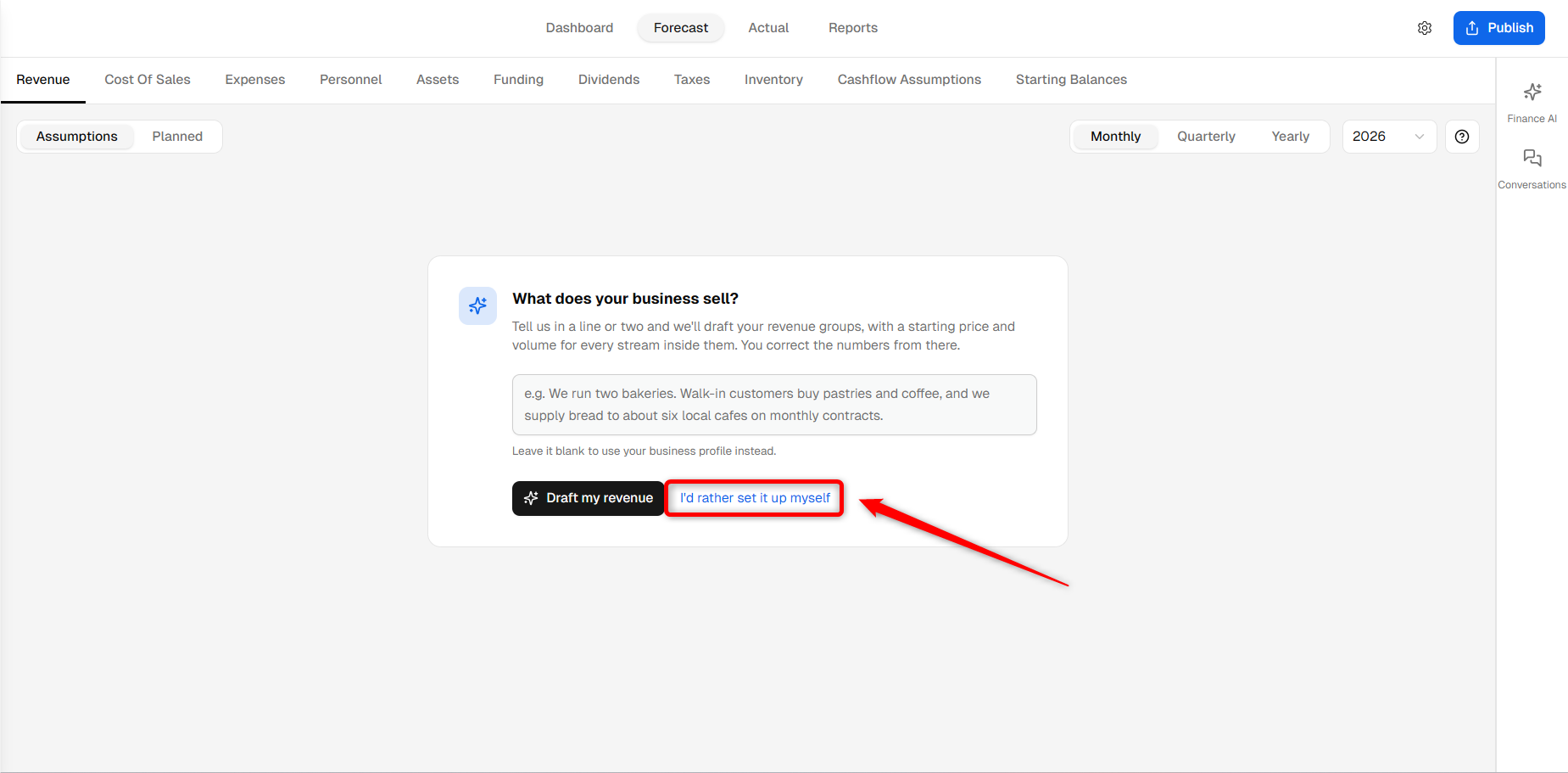
If you do not want Finance AI to draft the grant revenue stream, click I'd rather set it up myself from the revenue setup screen.
- 2
-
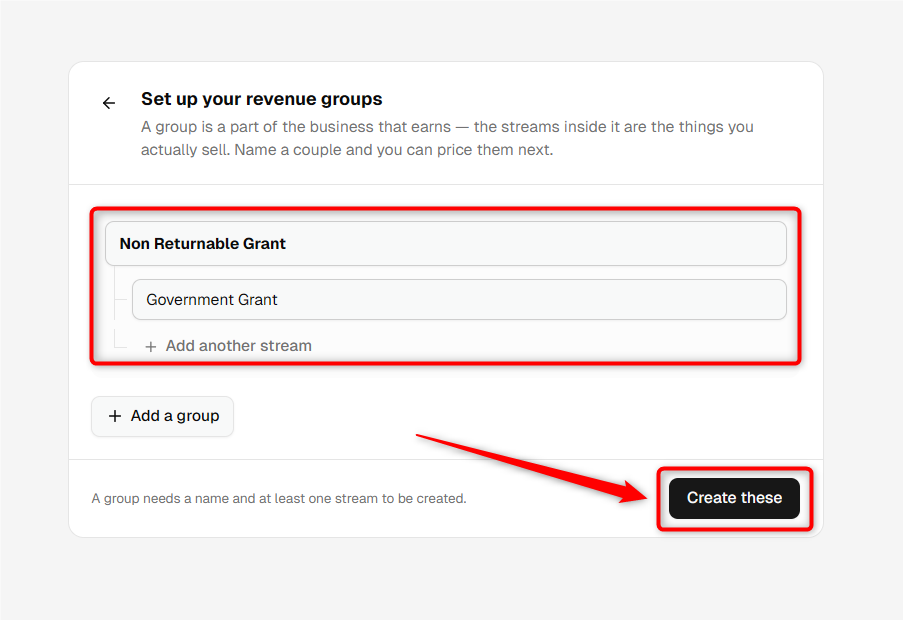
Enter the name of your Revenue Group, then enter a name for the grant revenue stream. You can use Grant or the name of the organization providing the grant.
When you are ready, click Create these.
- 3
-
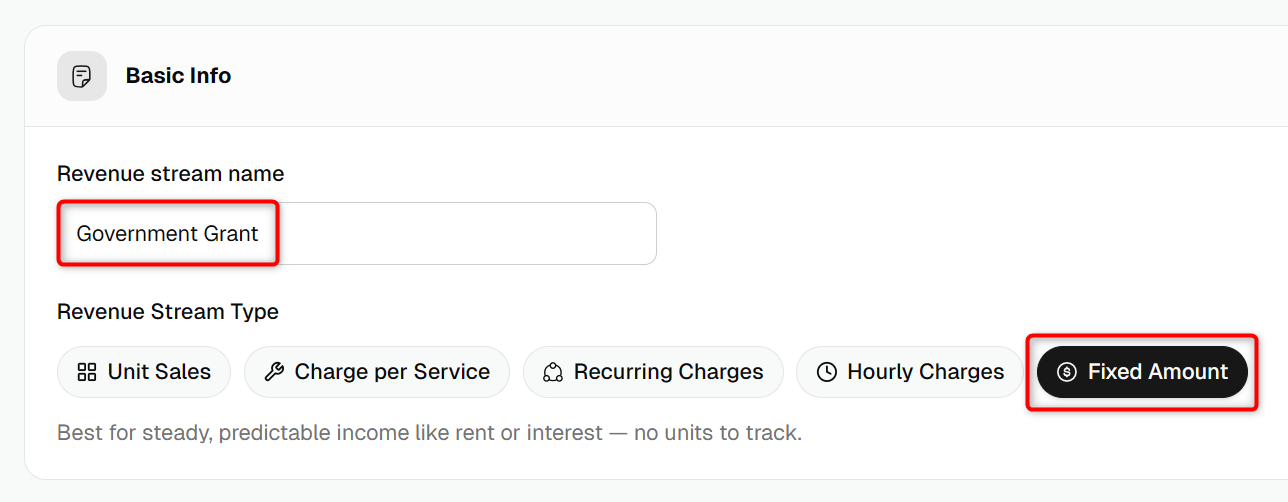
Upmetrics will create the revenue stream and open its Assumption window.
Under Basic Info, review the revenue stream name and select Fixed Amount as the Revenue Stream Type.
- 4
-
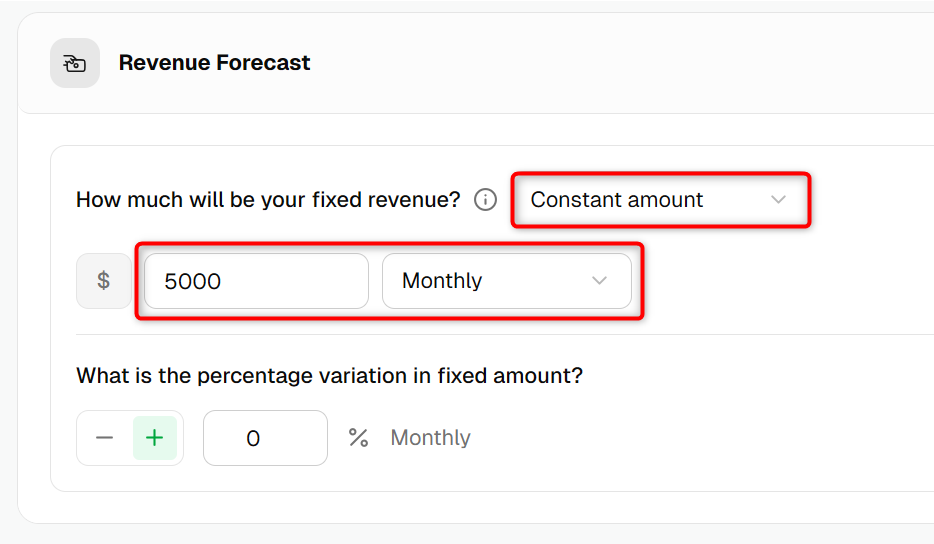
Enter the grant amount based on the amount you expect to receive.
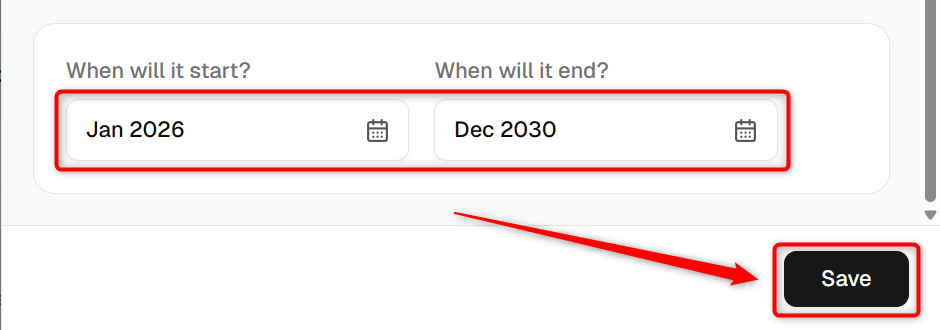
Select the appropriate timing for the grant. Set the Start Period for when the grant should be included in your forecast and, if applicable, an End Period.
- 5
-
Review the grant assumptions and click Save.
The grant will be included in your revenue forecast based on the amount and timing you entered.
Once the grant is added, it will appear under its revenue group in the Revenue section. You can open the stream again whenever you need to review or update the grant amount, timing, or other assumptions.