
Setting up a new company
Each Company is dedicated to one business plan, keeping your work focused on a single project.
You can also create multiple Companies for different projects and switch between them as needed.
Setting up a new Company in Upmetrics has two phases. First, you create the Company itself (profile, country, team). Then you set up its first business idea, providing the details Upmetrics needs to draft a tailored plan.
In this Article:
How to add and set up a new Company?
- 1
-
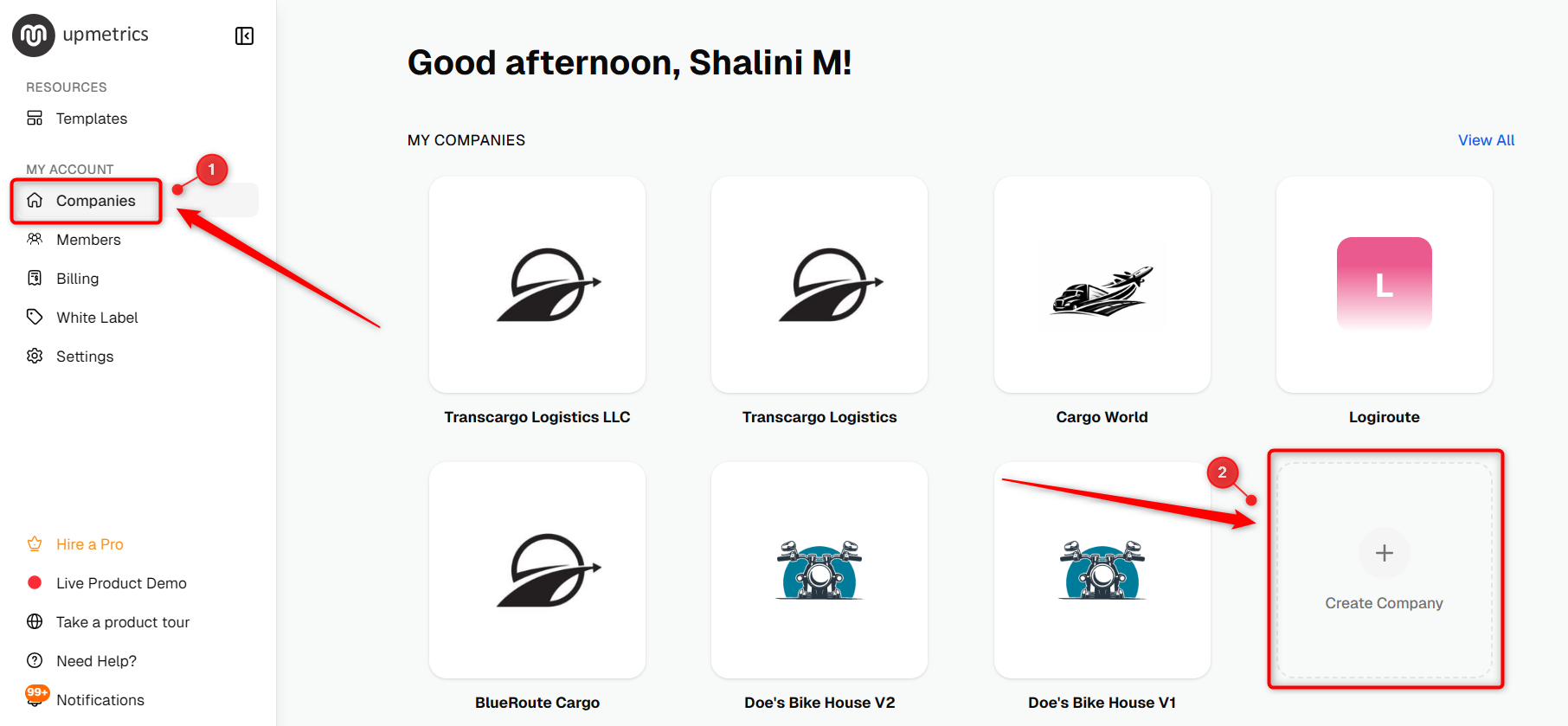
After logging in to your account, go to the Companies option in the left sidebar and click Create Company.
- 2
-
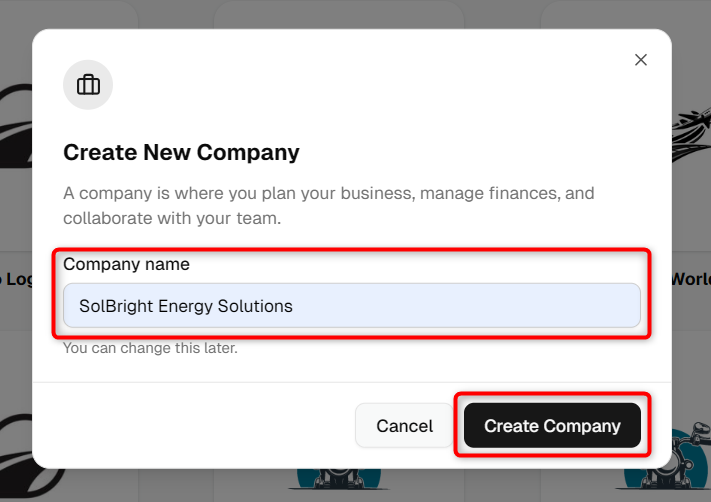
Enter your Company Name to continue to the Company Setup page.
- 3
-
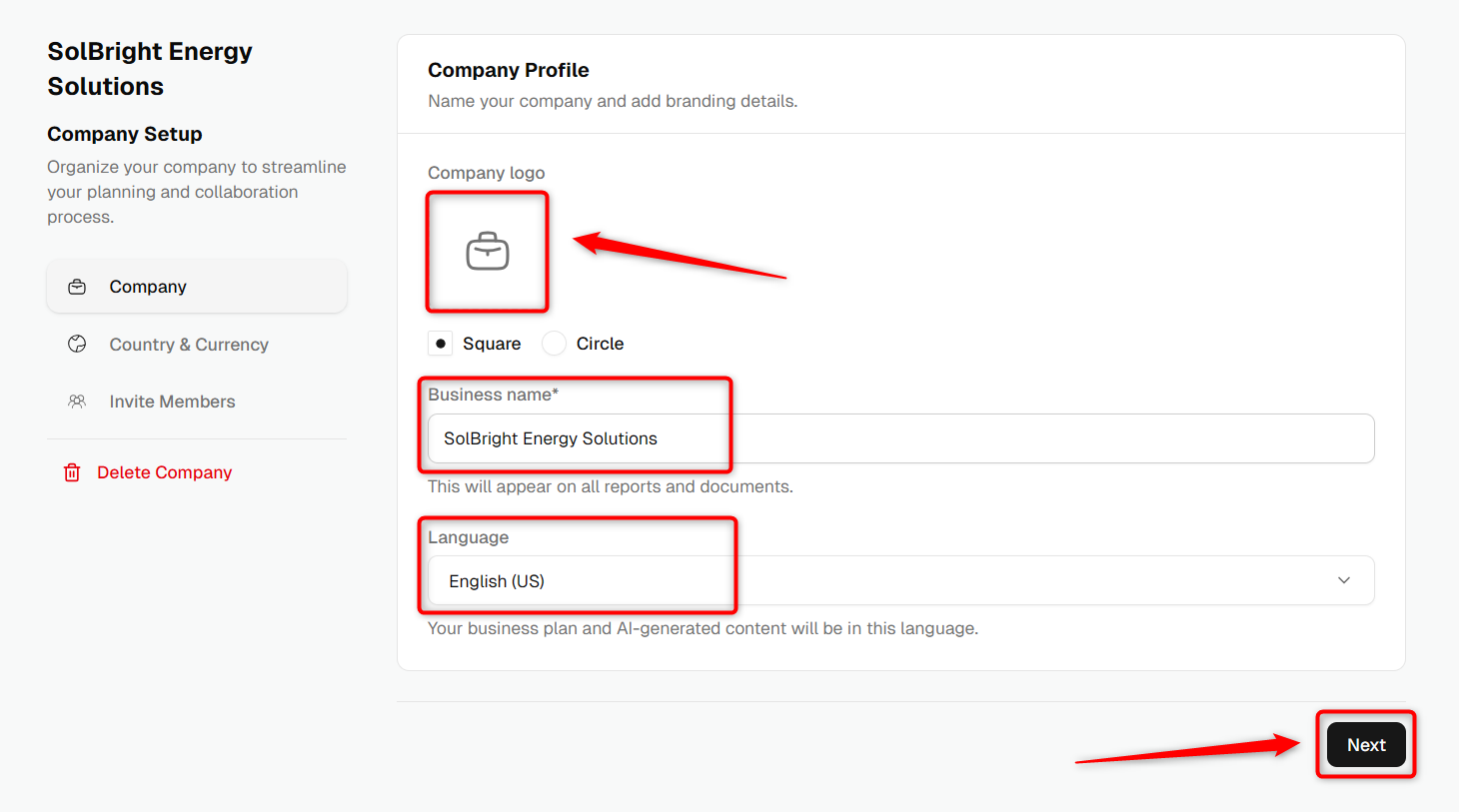
On the Company Setup page, fill in the Company Profile section:
- Company Logo: Upload your business logo.
- Business Name: Enter the name of your business.
- Language: Select the language you want to use for this Company.
Click Next to continue.
- 4
-
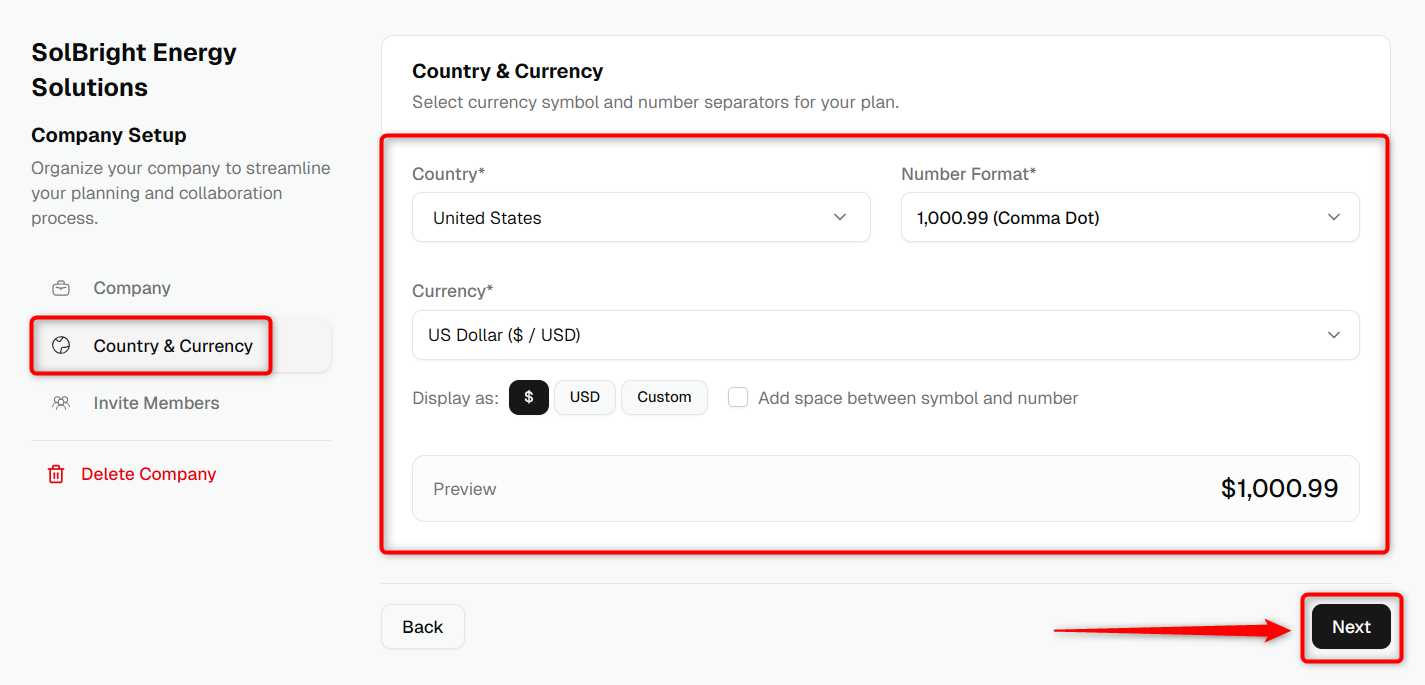
In the Country & Currency section, select your business Country, and currency options.
You can also customize:
- Number Format (e.g., comma/dot separator)
- Display options
- Space between symbol and amount (optional)
Once you've set your preferences, click Next to continue.
- 5
-
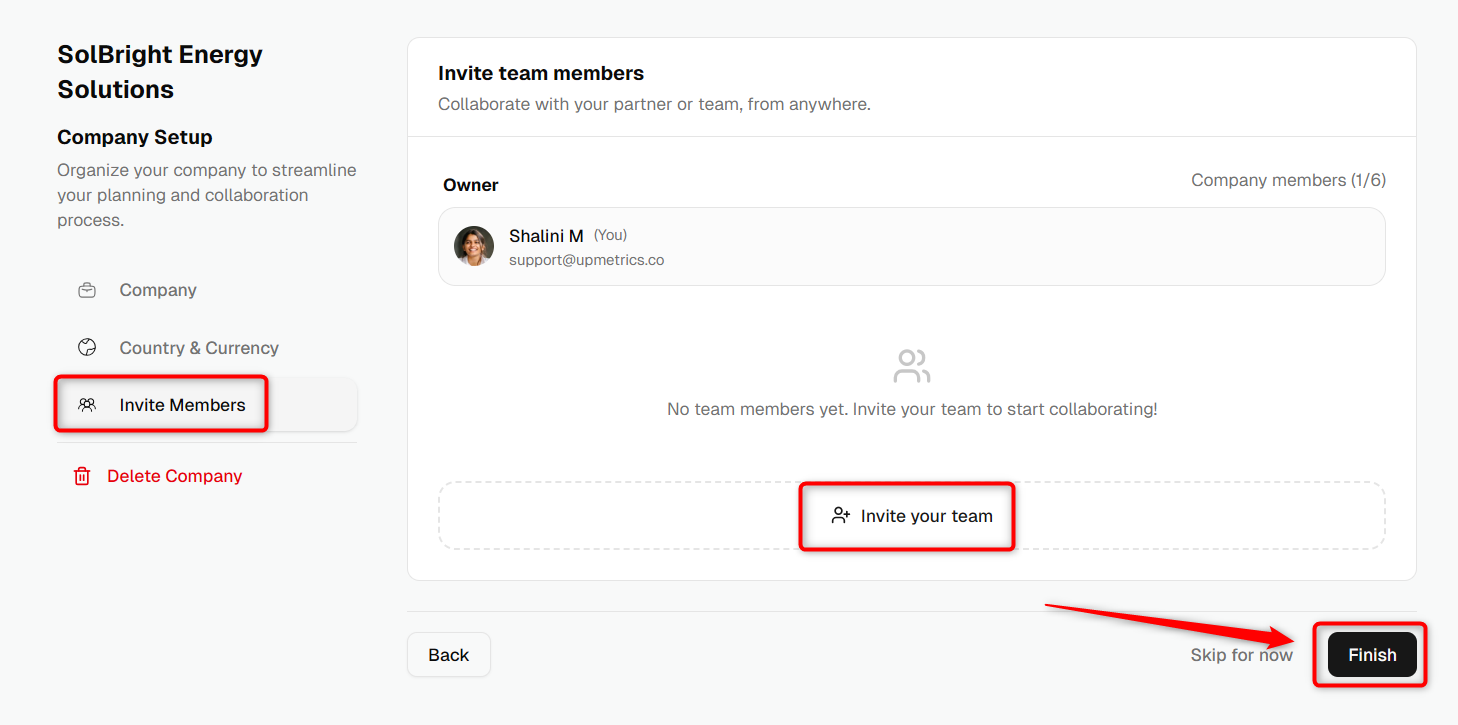
In the Invite Team Member section, invite teammates, colleagues, or business partners to collaborate within this Company. Everyone you invite can contribute to the plan in real time.
Click Finish to complete the Company setup.
- 1
-
With Company setup complete, the next phase is setting up your first Idea. This is where you describe what the business does so Upmetrics has the context it needs to generate a tailored plan.
In the Describe Idea step, fill in:
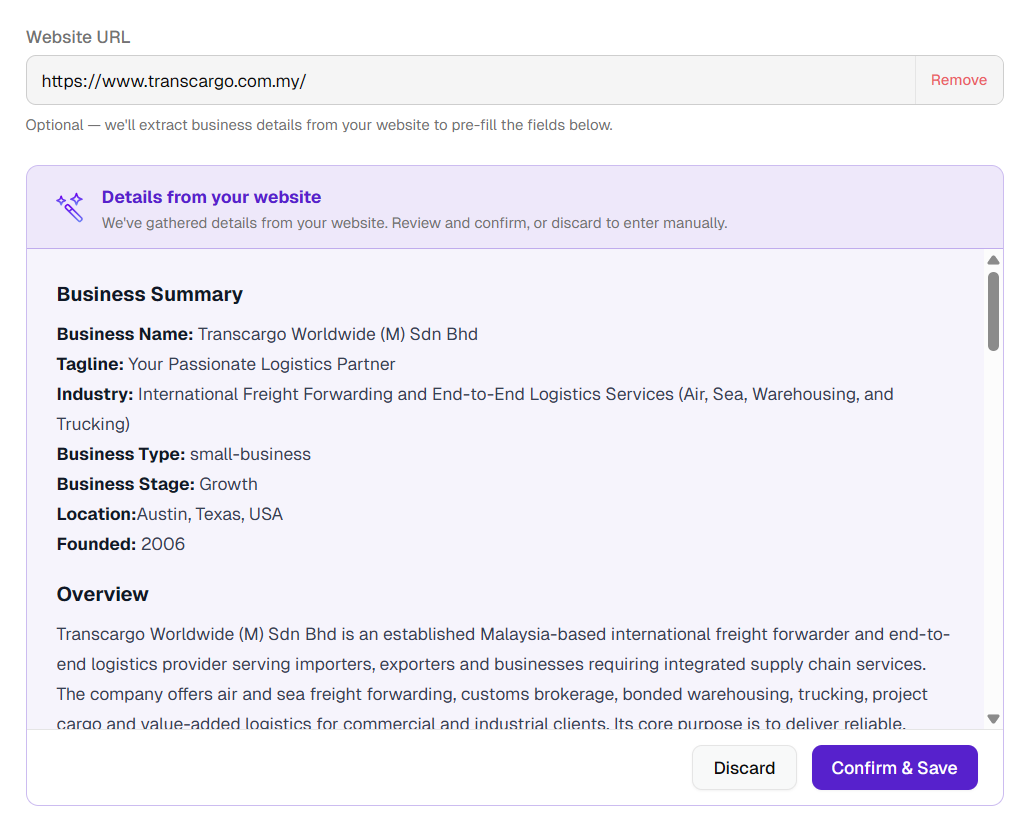
- Website URL: Your business website. Upmetrics auto-fetches your business details and uses them to populate the next field.
- What does your business do?: A description of your services, mission, and target audience. Review the auto-populated text and edit it as needed.
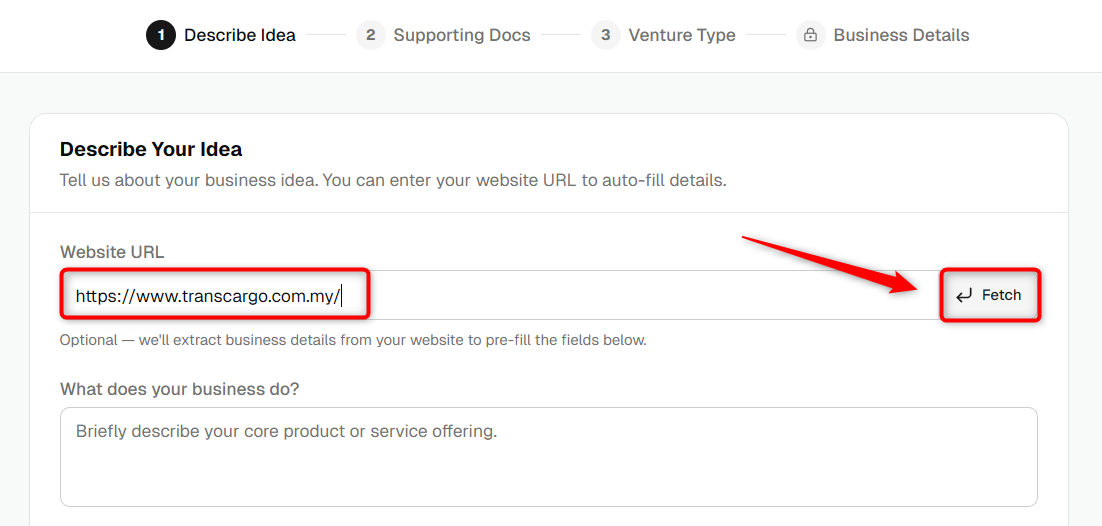
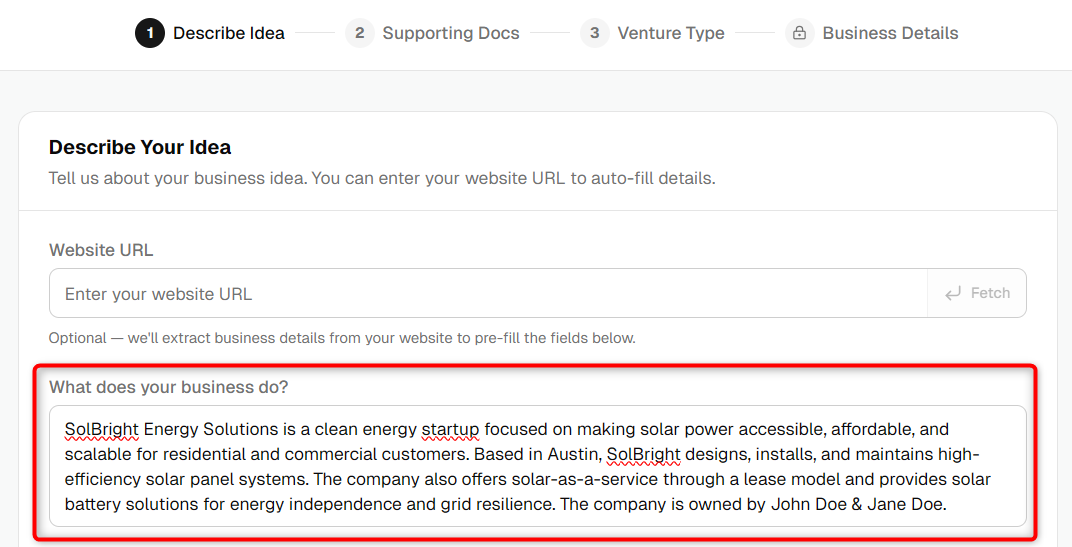
Below those fields, answer the additional questions about your business (for example, Who are your customers? and What problem are you solving?). To have the answers drafted for you, click AI Assist and Upmetrics will fill them in based on the business description you entered above.
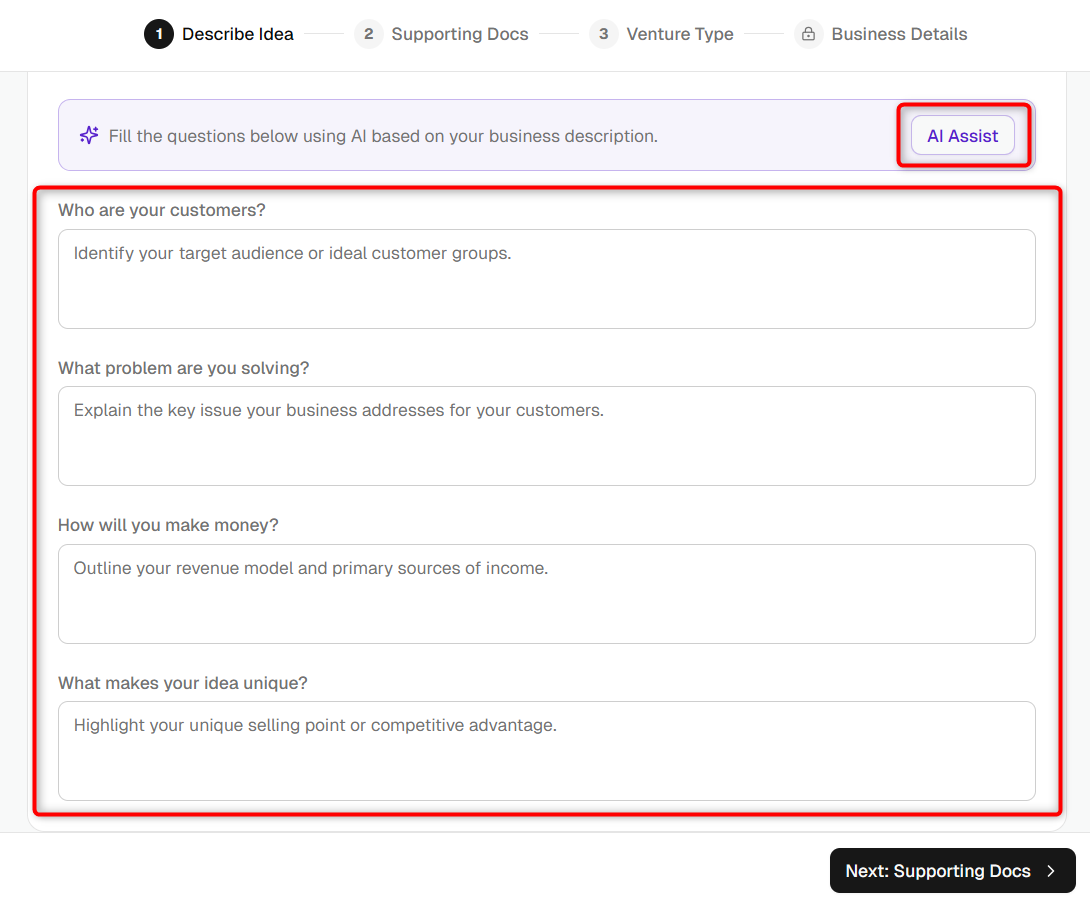
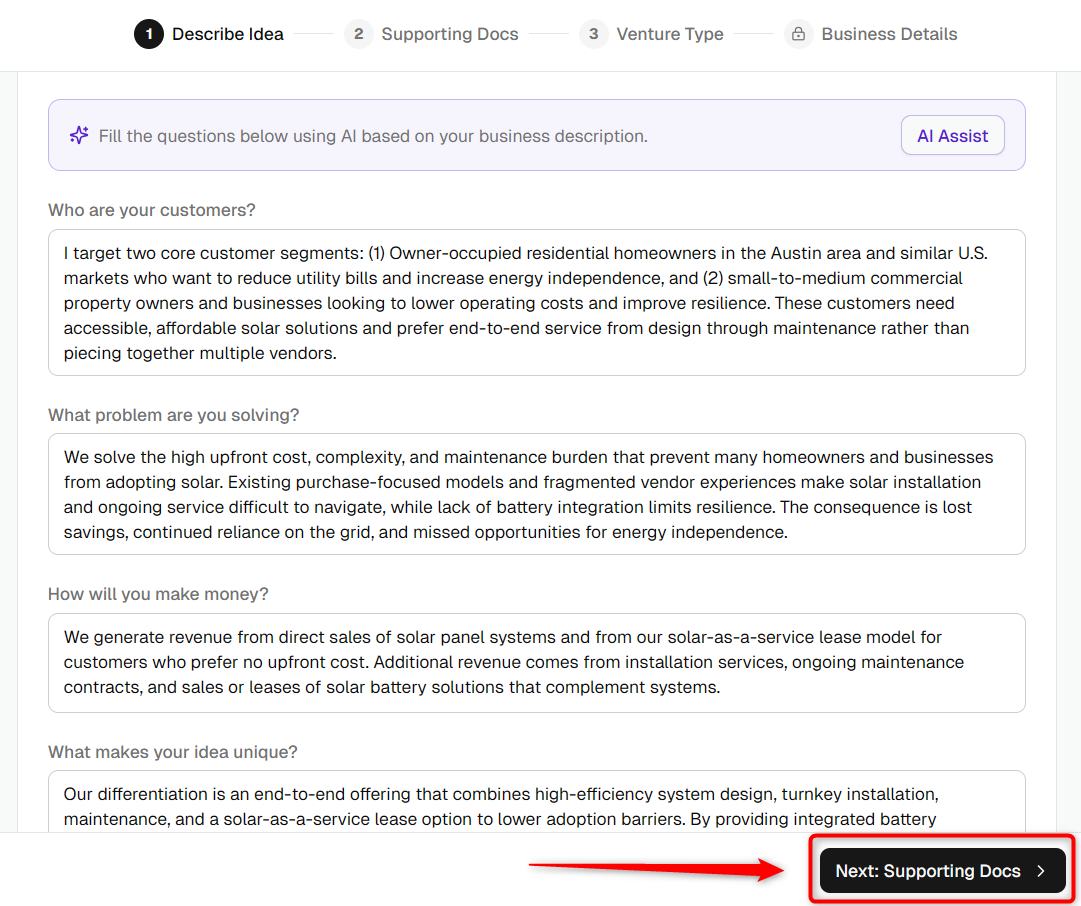
When you're done, click Next: Supporting Docs.
- 2
-
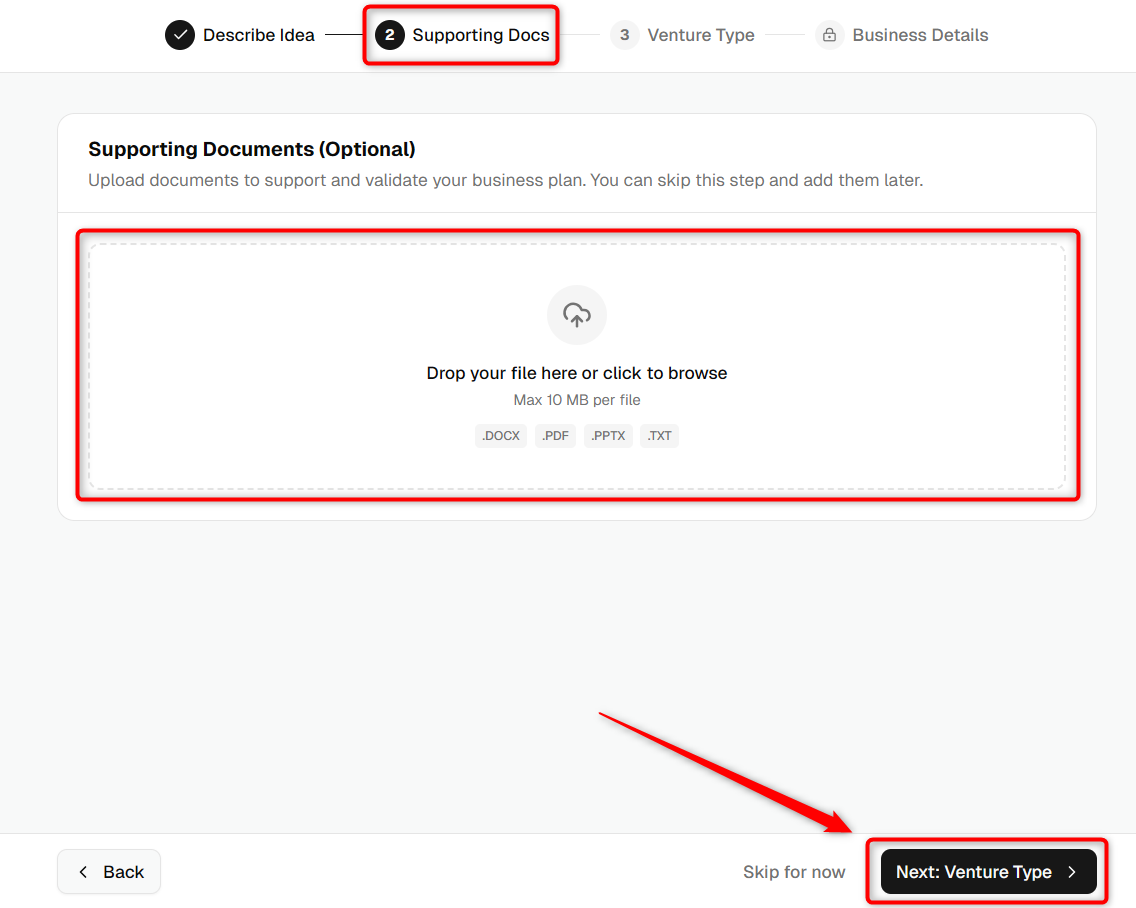
In the Supporting Docs section, You can attach supporting documents to provide more insights about your business, which helps the AI generate a more accurate and tailored business plan.
- 3
-
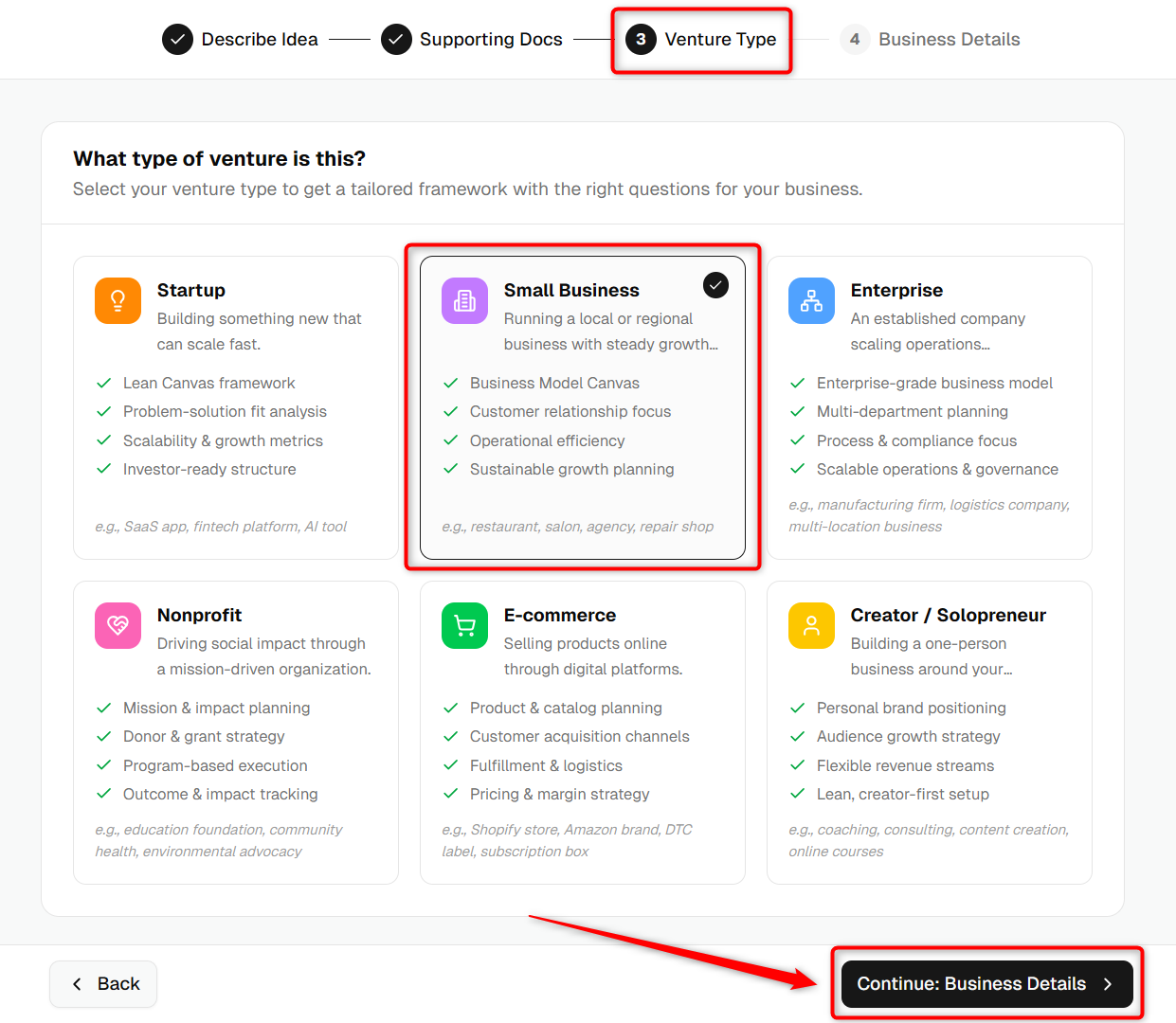
In the Venture Type step, answer What type of venture is this? by selecting the option that fits your business. Then click Continue: Business Details.
- 4
-
In the Business Details step, fill in details about your customers, location, products, and the other specifics that shape your plan. You can also use AI to help generate these details.
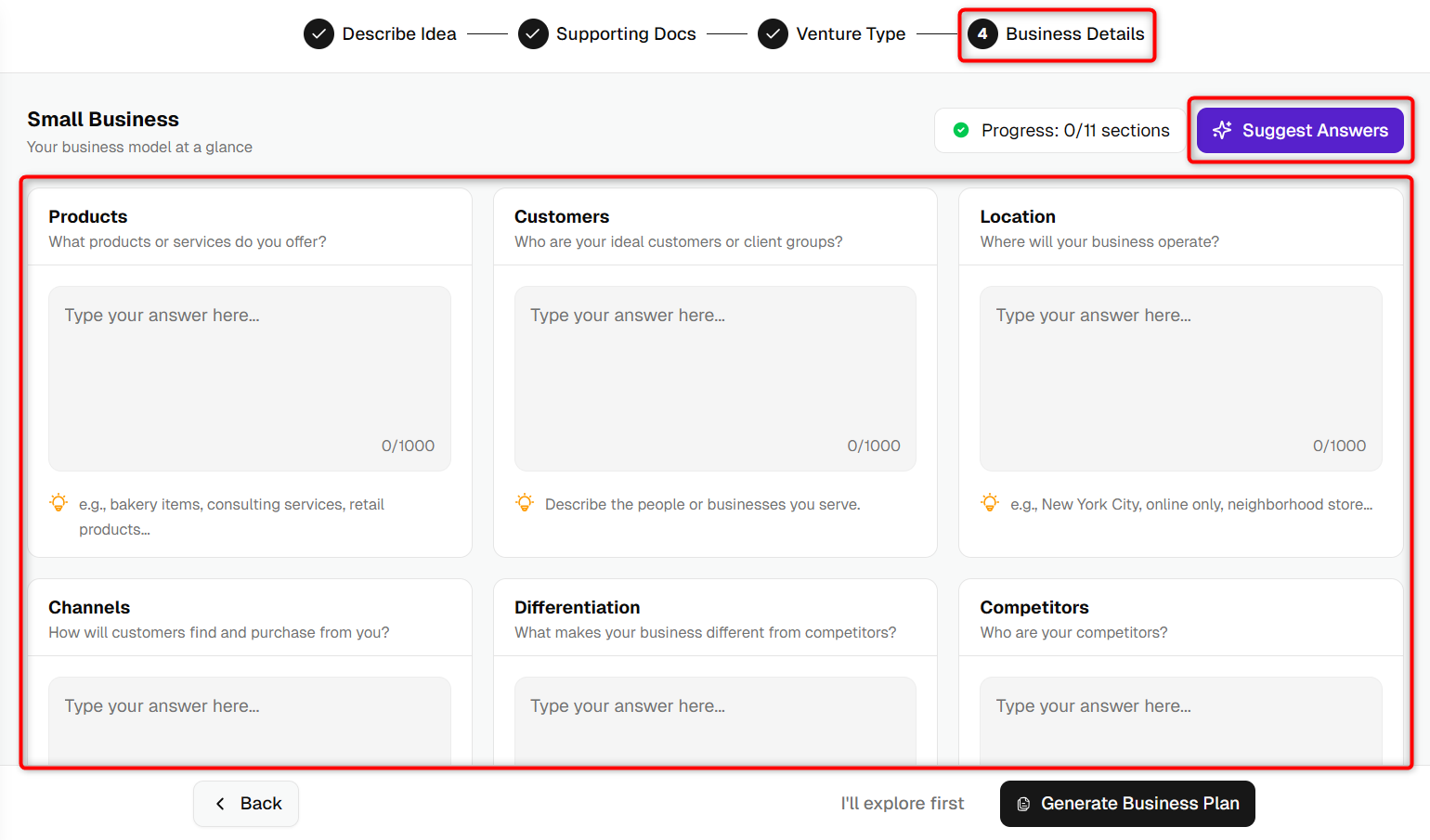
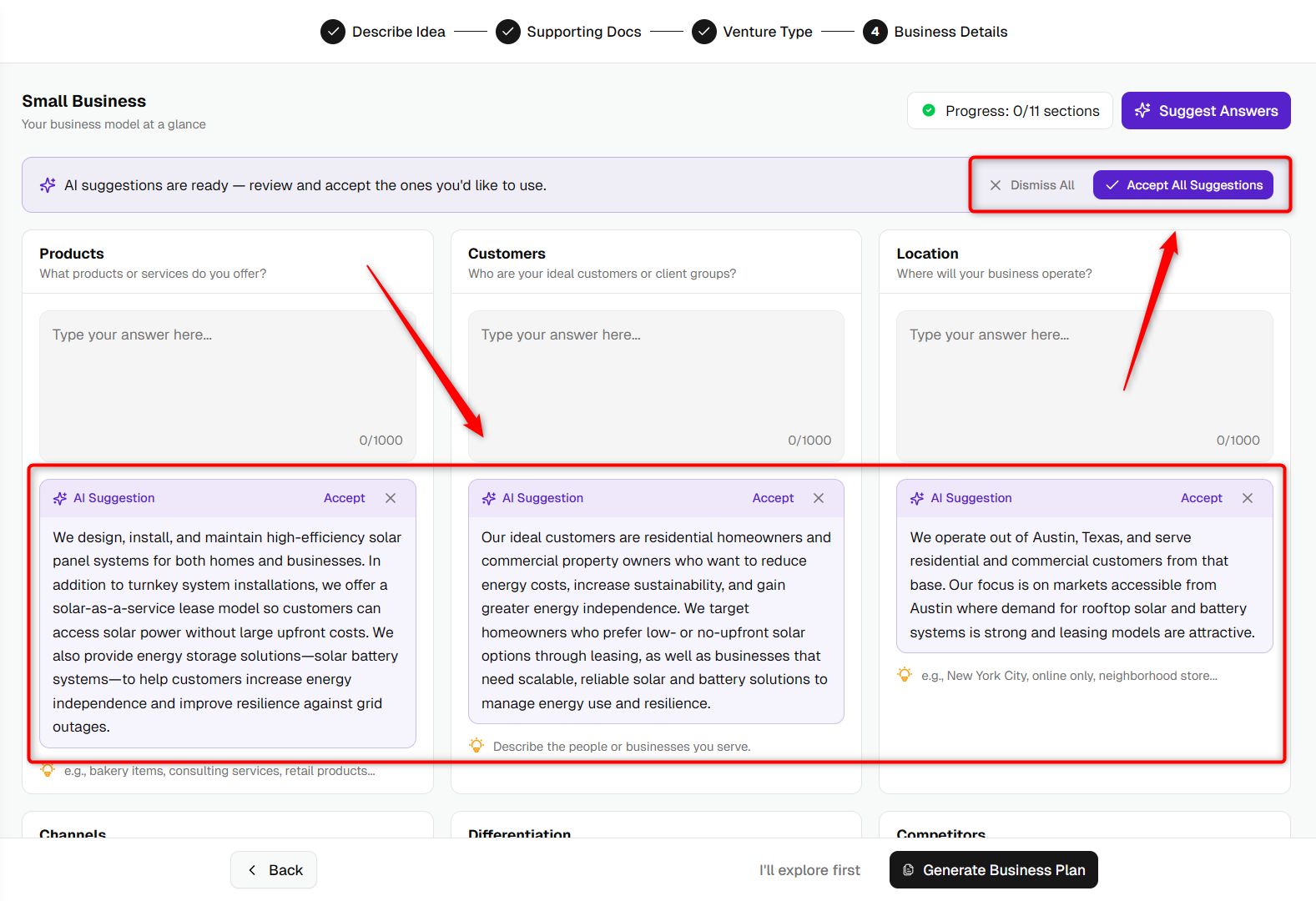
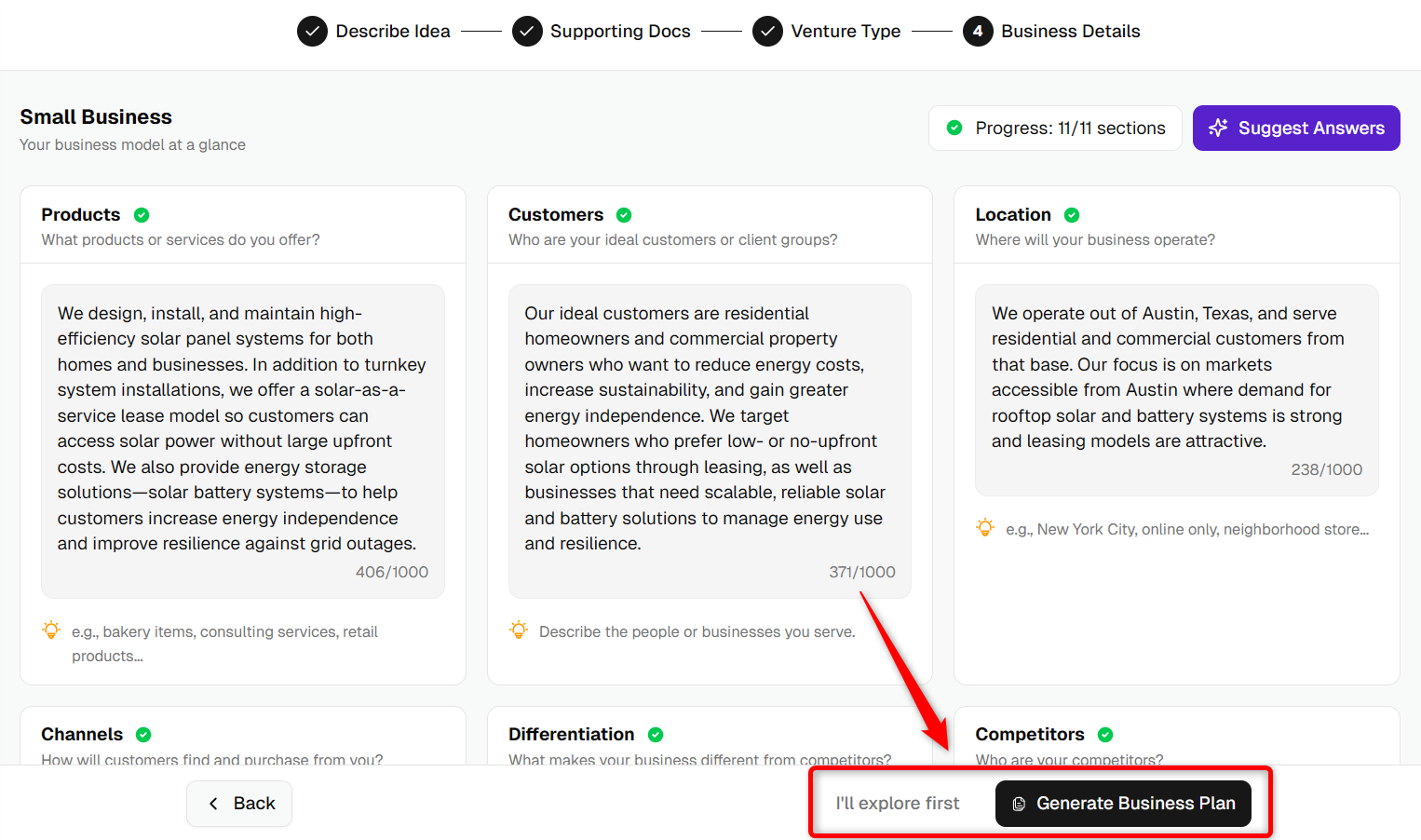
When you're ready, choose one of two options:
- Generate Business Plan: Upmetrics' AI drafts the plan for you using everything you've entered.
- I'll explore first: Skip AI generation and explore the editor on your own.
Setting up an Idea:
Once your Company and first Idea are set up, move on to writing your Business Plan, Click here to start writing your Business Plan