
How to import Excel sheet in the forecasting
Importing your financial data from an Excel spreadsheet allows you to quickly build a financial forecast without manually entering revenue, expenses, or other financial assumptions. Upmetrics uses AI to analyze your spreadsheet and automatically map the data into your forecast.
You can upload supported .XLSX, .XLS, or .CSV files containing Profit & Loss, Balance Sheet, or Cash Flow data. Once imported, review the generated forecast items and complete the setup to ensure everything is accurately configured.
Steps to import an Excel spreadsheet into Financial Forecasting
- 1
-
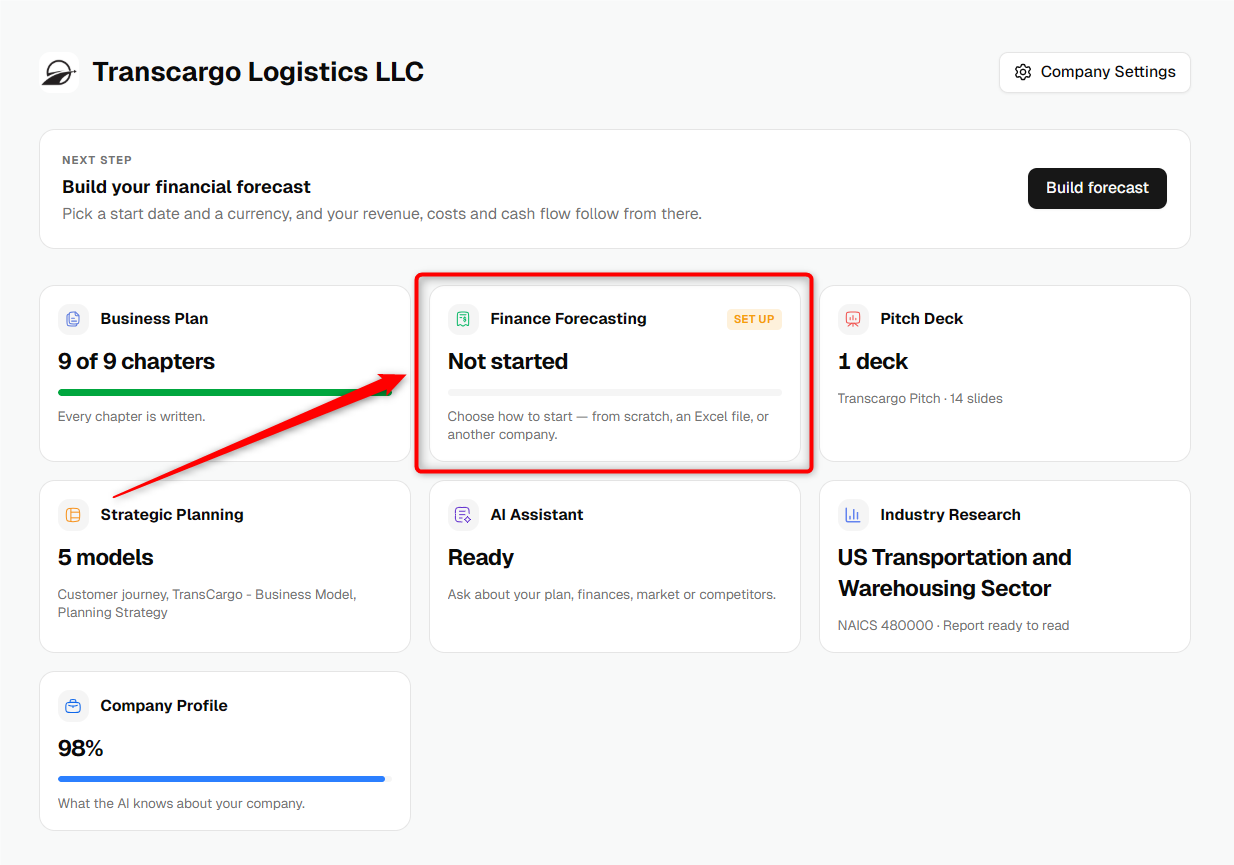
From your company homepage, click on Finance Forecasting to begin the forecasting setup process.
- 2
-
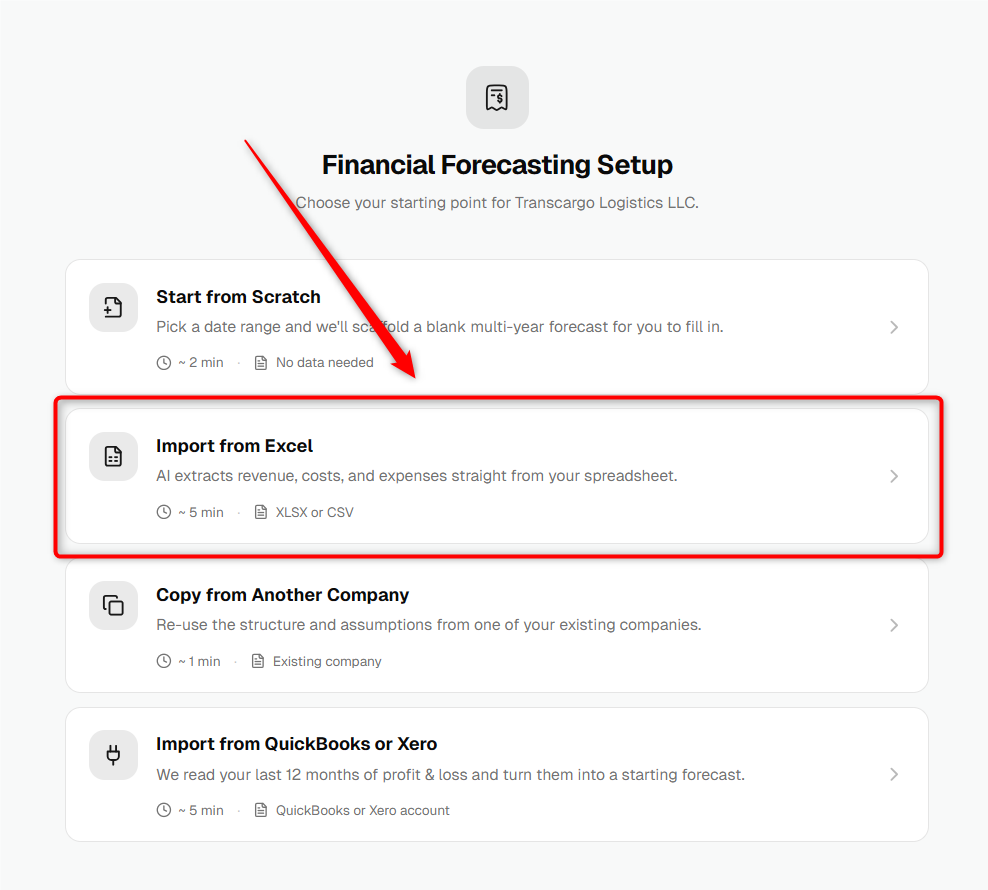
On the Financial Forecasting Setup screen, select Import from Excel.
- 3
-
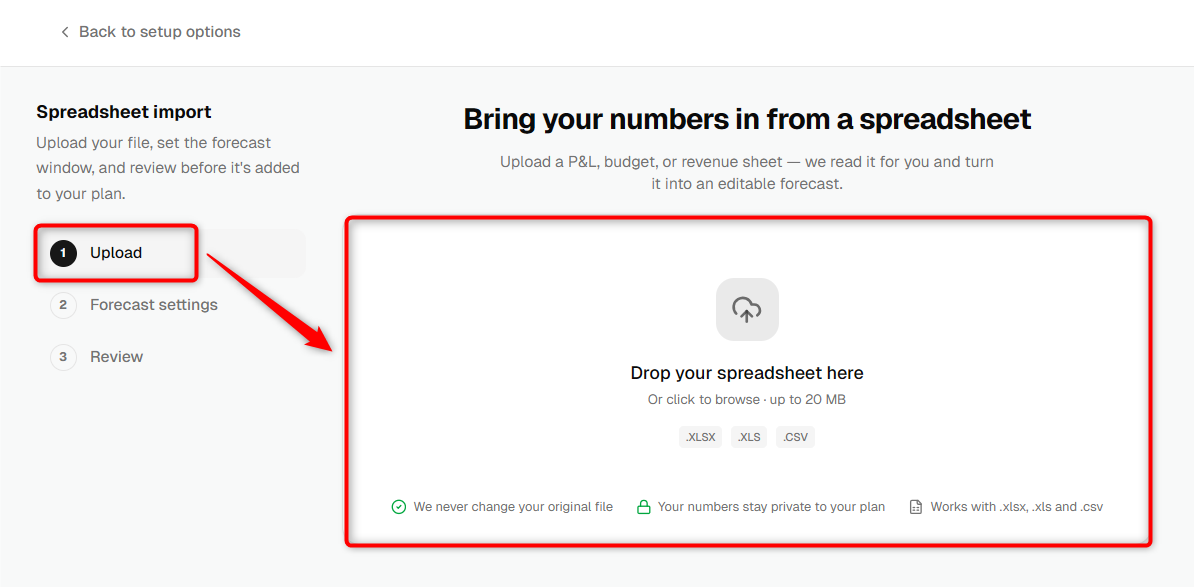
Upload your spreadsheet by dragging and dropping the file into the upload area or clicking to browse your computer.
Supported file formats include .XLSX, .XLS, and .CSV.
- 4
-
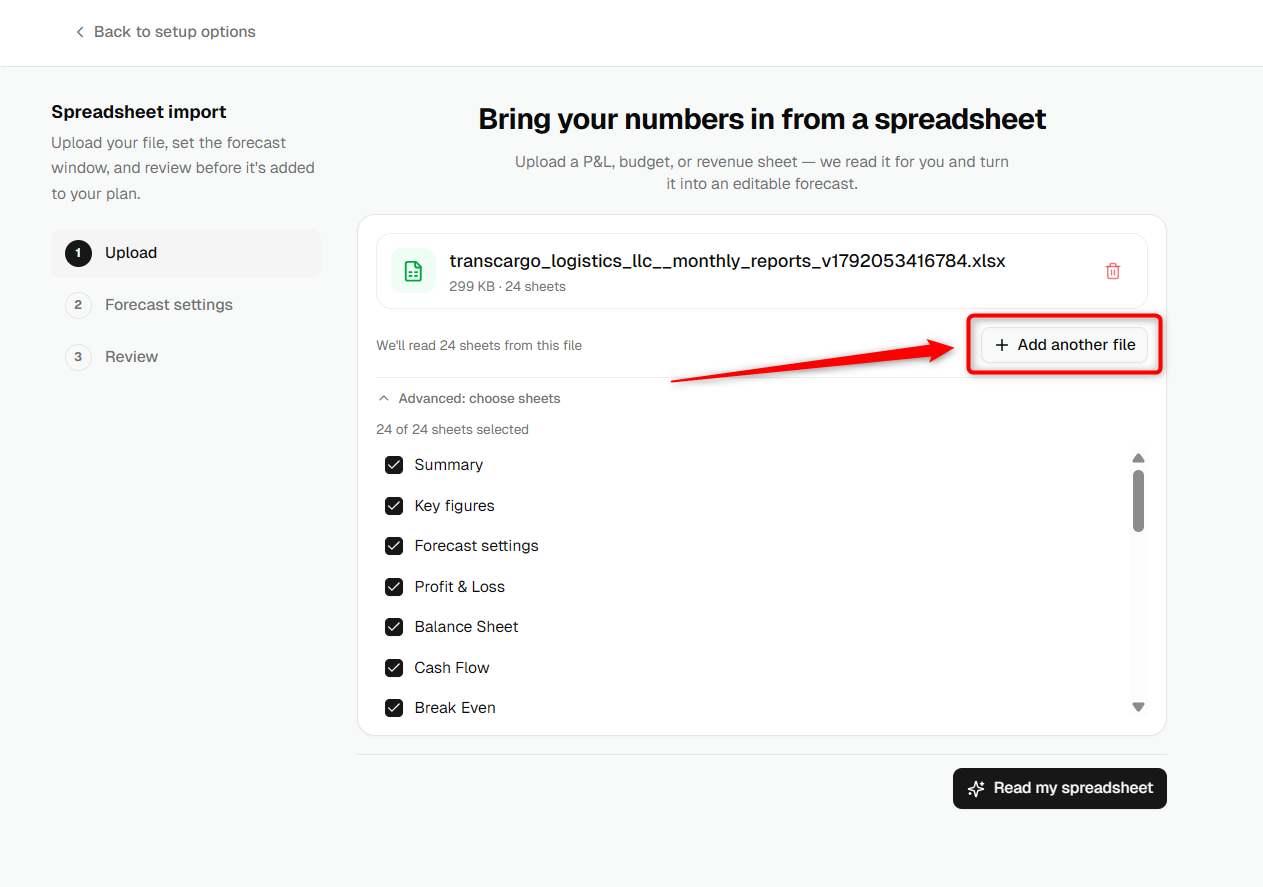
After the file is uploaded successfully, click on Read My Spreadsheet option. If your file contains multiple sheets, you can select which sheet you want to import.
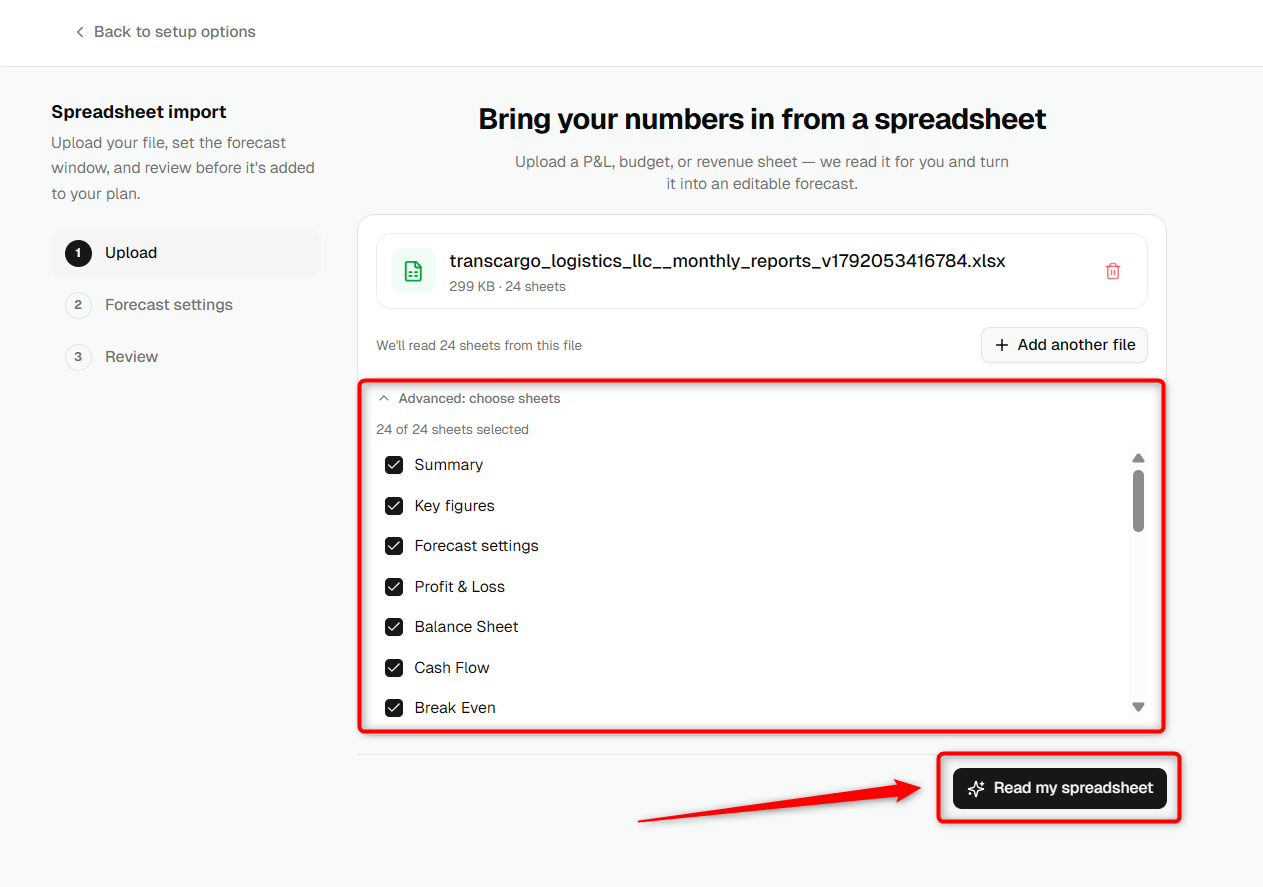
To upload multiple files in your forecast, click on Add Another File.
- 5
-
The AI will review your spreadsheet and identify financial data that can be imported into your forecast.
- 6
-
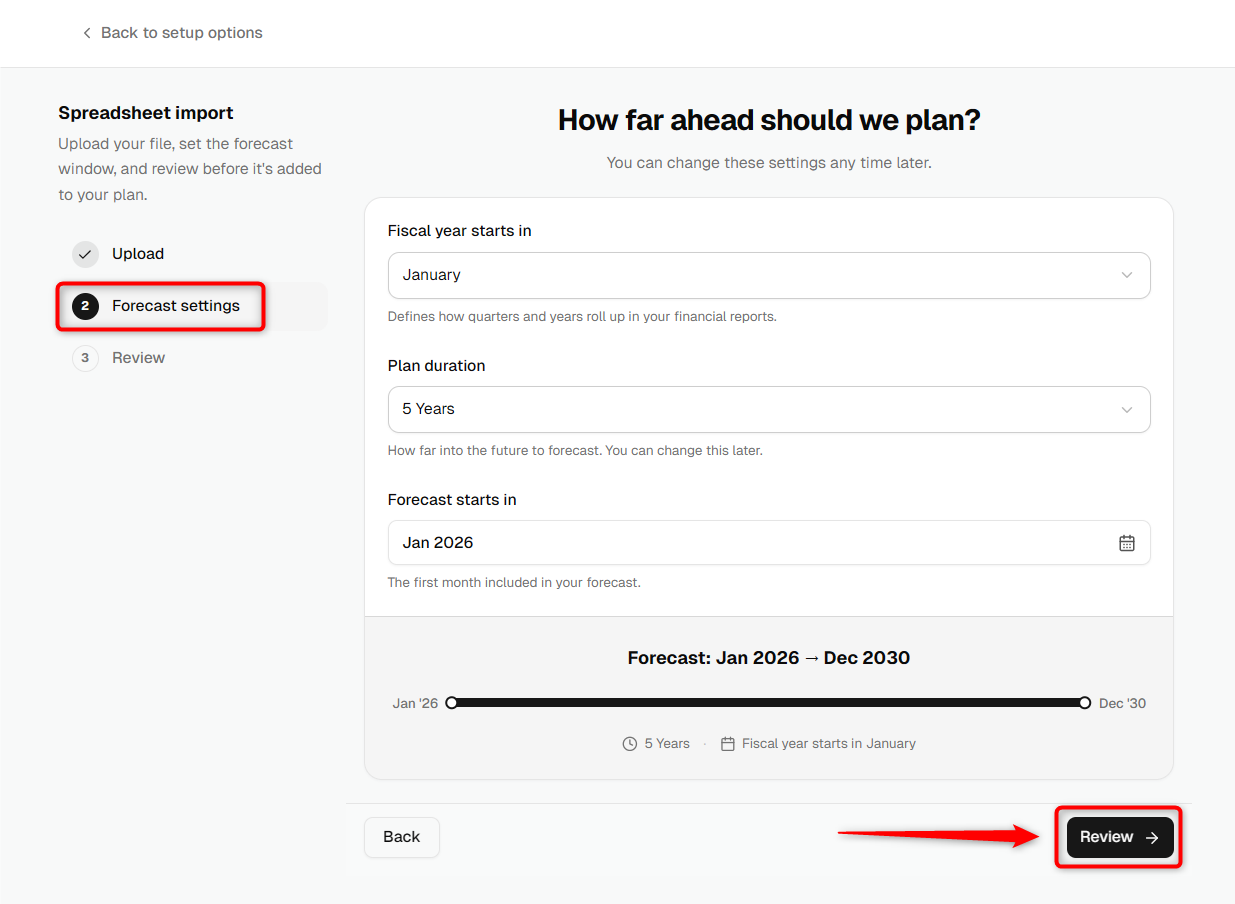
Once the analysis is complete, review and configure the forecast settings, including:
- Fiscal year start month
- Plan duration
- Forecast start date
Click Review to proceed.
- 7
-
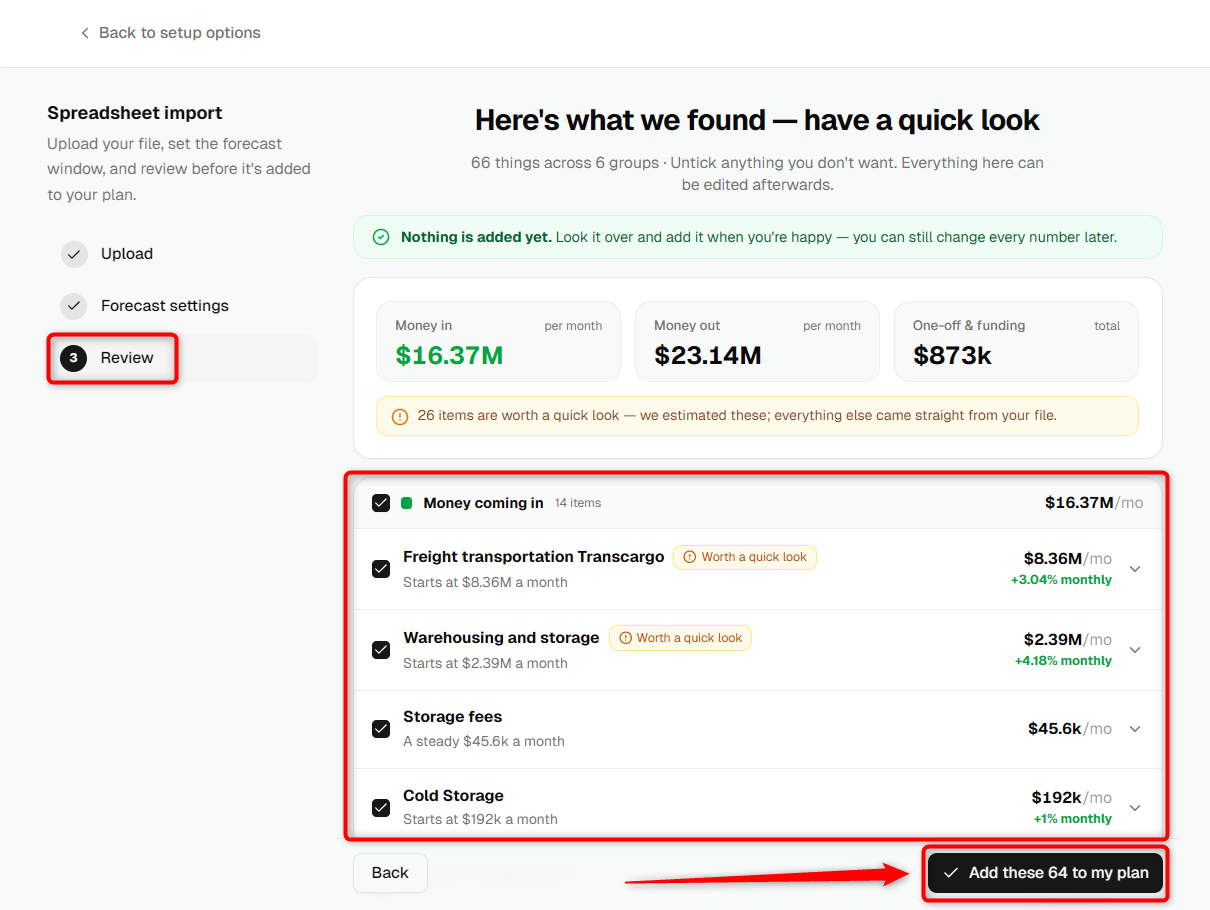
Review the items identified by AI for import. You can expand categories and deselect any items you do not want to include in your forecast.
When you're satisfied with the selection, click Add These To My Plan.
- 8
-
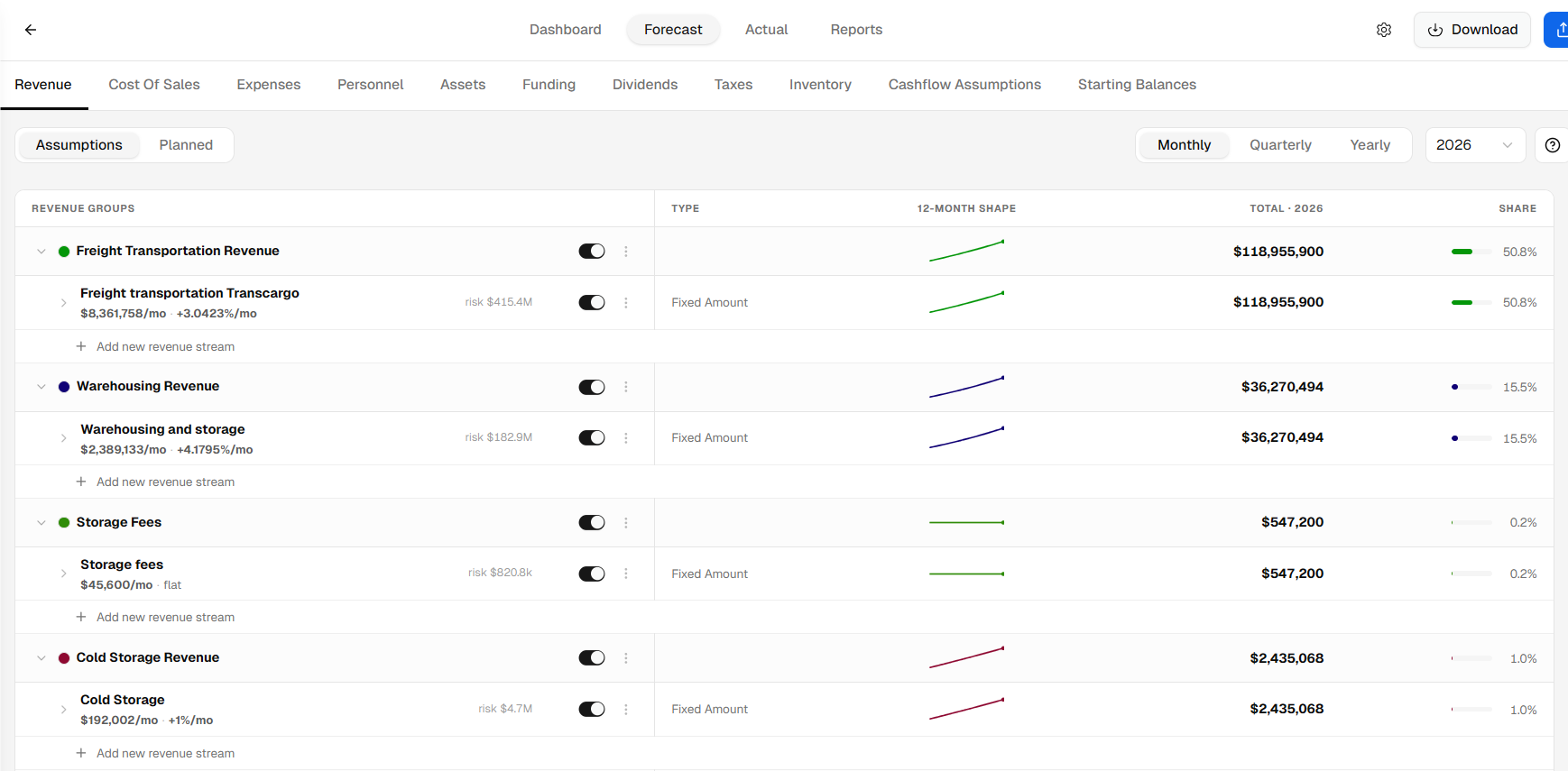
Upmetrics will import the selected items into your financial forecast and create the corresponding forecast assumptions automatically.
TIP: For the best results, ensure your spreadsheet contains clearly labeled financial data and consistent formatting before uploading.
NOTE: AI-generated mappings should always be reviewed before finalizing your forecast to ensure all financial assumptions have been imported accurately.
Once the setup is complete, your Excel data will be converted into forecast assumptions within Upmetrics, allowing you to continue refining your financial projections and generating reports with confidence.